
 Text Tools
 Image Tools
 PDF Tools
 Social Media Tools
 Security Tools
 Coding Tools
 CSS Tools
 Color Tools
 Miscellaneous Tools
 Add to Chrome
 Add to Firefox


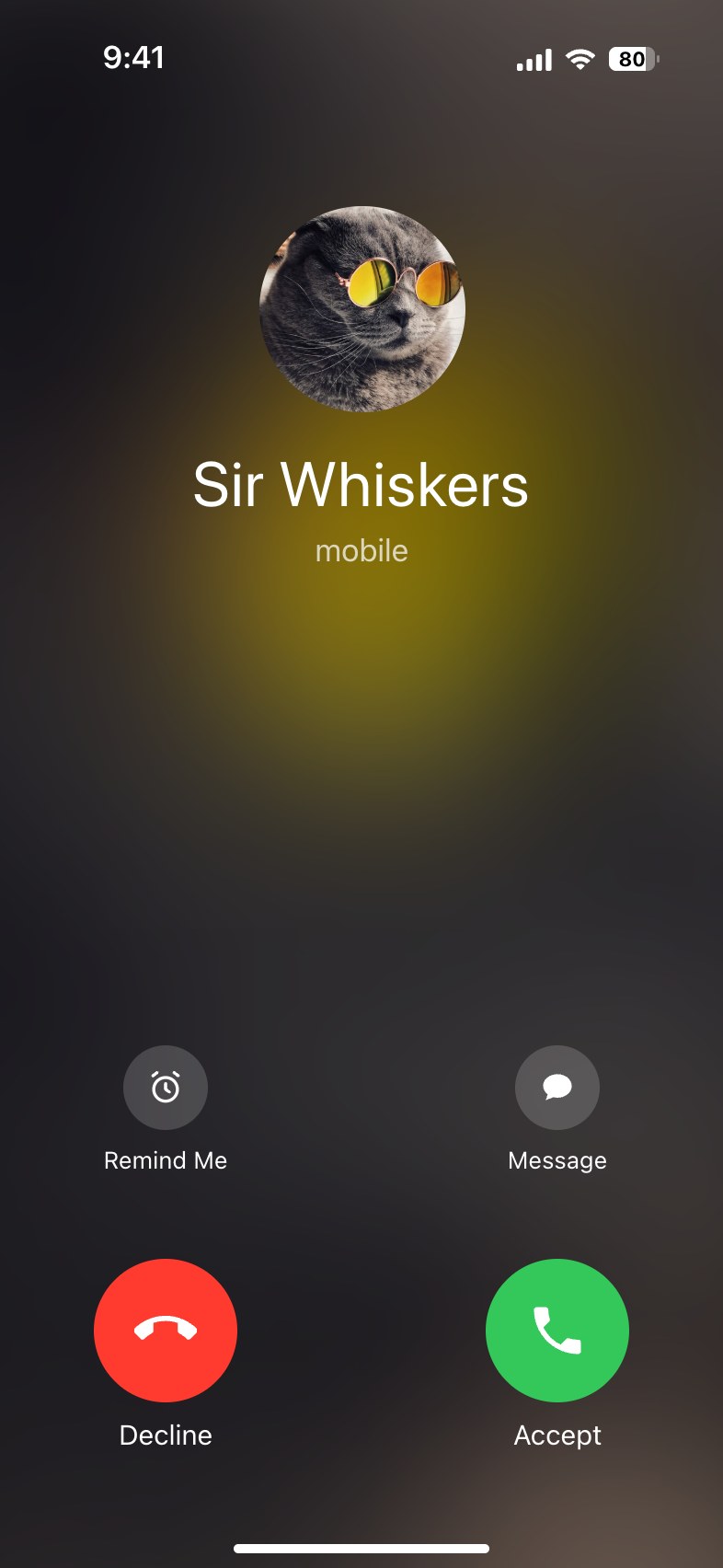
Draws the iPhone Phone app during a call, incoming, ringing out or in progress, as a phone-sized screenshot.
What is the iPhone Call Screen Generator?
iPhone Call Screen Generator draws the screen the iPhone Phone app shows during an ordinary call, so you can make a fake iPhone call screenshot without calling anyone. It is the cellular call, not FaceTime: the caller's name in large type with the label of their number, such as "mobile", under it, and the buttons of the moment. The picture is exactly one phone screen, 393 × 852 points like a current iPhone, so it reads as a real screenshot.
People use it for the "look who is calling me" joke, a call from a celebrity, a boss or a pet, for thumbnails and story illustrations, and for slides and mockups that need an incoming call screen.
The screens
- Incoming call, unlocked: Remind Me and Message above the red Decline and green Accept buttons.
- Incoming call on a locked iPhone: the same shortcuts above the "slide to answer" slider.
- Calling: the call you are making, with "calling mobile…" under the name.
- In the call: the running time under the name and the six buttons, Speaker, FaceTime and Mute above More, the red End button and Keypad. Speaker and Mute can be shown switched on.
The caller
Type the name as it is saved in your contacts, or leave it empty and type a number, which then takes its place. Choose the label of the number (mobile, iPhone, home, work, main or other, or none). Add a photo and choose how it shows: as a Contact Poster, the full-screen picture with the name written large across it that iOS shows for contacts who have one, or blurred behind a round picture. Without a photo the screen is the plain dark one of a contact with no picture.
Need a different app? The FaceTime, WhatsApp and Instagram call screen generators draw those calls.
How to make a fake iPhone call screenshot
- Choose the screen: an incoming call, unlocked or locked, a call you are making or a call in progress.
- Type the name of the caller, or a number, and pick the label of the number.
- Add their photo if you like, as a Contact Poster or blurred behind a round picture.
- For a call in progress, write how long it has been running and switch on Speaker or Mute if you want.
- Under Screen, set the language, the time and the battery, then download the picture or copy it to your clipboard.
Frequently asked questions
Can I make an incoming call from an unknown number?
Yes. Leave the name empty and type the number: it shows in large type where a name would be. With neither, the screen says "Unknown Caller".
Is this the FaceTime screen?
No, it is the screen of a normal phone call. For a FaceTime Video or Audio call, use the FaceTime Call Screen Generator.
Can I make it in another language?
Yes. Choose the language under Screen and the words the Phone app writes itself, such as the label of the number, Remind Me, Message, Decline, Accept, "slide to answer" and "calling…", change to it. There are English, Indonesian, Spanish, Portuguese, German, French, Turkish, Russian, Vietnamese, Italian, Polish and Dutch. The name and the number stay as you typed them.
Is my photo uploaded?
No. The screen is drawn in your browser, so the photo never leaves your device. Your settings are kept in this browser between visits.
Is this connected to Apple?
No. It is a drawing tool: no call is placed and no Apple account is used.
Usage Policy
A call screenshot can make it look as if someone called when they did not. By using the iPhone Call Screen Generator you accept these limits: never fake a call from a real person to deceive, embarrass or pressure anyone, never imitate a bank, support staff or the authorities, and never present a generated image as evidence. iPhone is a trademark of Apple Inc.; this tool is not endorsed by Apple, and what you make with it is your responsibility rather than 10015.io's.