 Text Tools
 Image Tools
 PDF Tools
 Social Media Tools
 Security Tools
 Coding Tools
 CSS Tools
 Color Tools
 Miscellaneous Tools
 Add to Chrome
 Add to Firefox
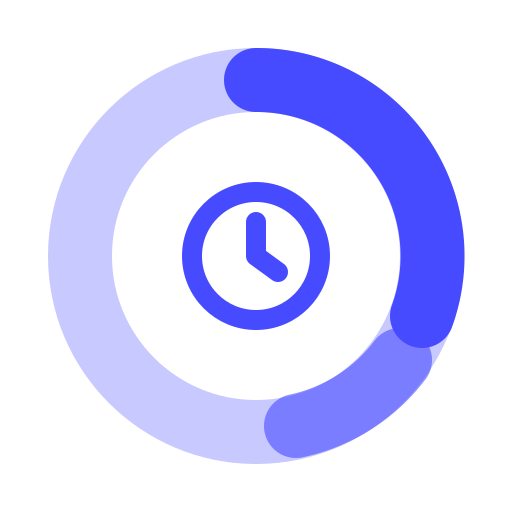
Makes Android Digital Wellbeing screenshots: the screen time ring with unlocks and notifications, or the Dashboard with its week chart and app list.
Digital Wellbeing & parental controls
Screen
Totals
Apps
The day's screen time is the sum of these and Other Apps; the five most used fill the ring.
What is Online Android Screen Time Generator?
On Android, screen time lives in Digital Wellbeing (Settings → Digital Wellbeing & parental controls). Android Screen Time Generator draws that screen with your own numbers and saves it as a screenshot: the ring that splits the day between your most used apps with the total in the middle, the unlocks and notifications under it, and the Dashboard with the week's chart and the time spent in each app.
It is for the screen time posts and duets on TikTok, memes about doomscrolling, a slide on digital habits, or a mockup for an app or a lesson, for people whose phone is not an iPhone.
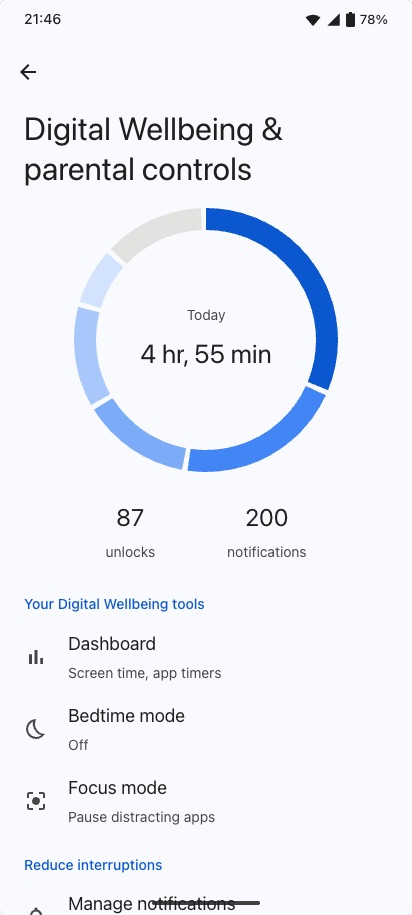
Two Screens From Digital Wellbeing
- Digital Wellbeing: the ring, coloured in shades of the phone's theme colour from the most used app down, with the day's total in the middle, then the number of unlocks and notifications and the Dashboard, Bedtime mode and Focus mode rows.
- Dashboard: "Screen time" or "Notifications received", the total for the day, a bar for each of the last seven days with today highlighted, and every app with its time and the hourglass for an app timer.
Times are written the Android way, "4 hr, 12 min" and "45 min", and the theme colour can be blue, green or purple to match the Material You colours a Pixel picks from its wallpaper.
How to use Online Android Screen Time Generator?
- Choose the screen: the Digital Wellbeing ring or the Dashboard, then light or dark and a theme colour.
- Add your apps with the time spent in each, like "1h 34m" or "41m", and the notifications they sent. Other Apps covers the rest of the day.
- Set the unlocks for the ring, or pick what the Dashboard shows and which day is selected; Shuffle redraws the earlier days of the week.
- Set the status bar time and battery level.
- Click "Export Screenshot" to download the PNG or copy it to paste somewhere else.
Frequently asked questions
Is Digital Wellbeing the same as Screen Time?
It is Android's version of it. Apple calls it Screen Time; on Android the same report of time per app, unlocks and notifications is in Digital Wellbeing. For an iPhone screenshot use the Screen Time Generator; the tabs above the preview switch between the two.
Why does it look slightly different from my phone?
The tool draws the Pixel version of Digital Wellbeing. Samsung, Xiaomi and other brands ship their own versions with different layouts, and Android updates move things around too, so yours may not match exactly.
Does it connect to my phone?
No. There is nothing to install and no account. Every number is one you typed, and the screenshot is drawn in your browser.
What size is the image?
The screen is 412 × 915, the size of a Pixel, and it is exported at twice that, 824 × 1830 pixels. Tick "Full-Length Screenshot" to include the whole app list on the Dashboard.
Usage Policy
Showing off a ridiculous screen time for a laugh, or making a mockup, is what this is for. Passing a made-up report off as real to a parent, a school, an employer or a researcher is not. By using Android Screen Time Generator by 10015.io you agree not to use it to deceive anyone, and that 10015.io is not responsible for what is made with it.