
 Text Tools
 Image Tools
 PDF Tools
 Social Media Tools
 Security Tools
 Coding Tools
 CSS Tools
 Color Tools
 Miscellaneous Tools
 Add to Chrome
 Add to Firefox
Recreates the iPhone FaceTime screens, from an incoming FaceTime Video call to the floating control panel of a running chat, as a downloadable image.
Call
What is a FaceTime Call Screen Generator?
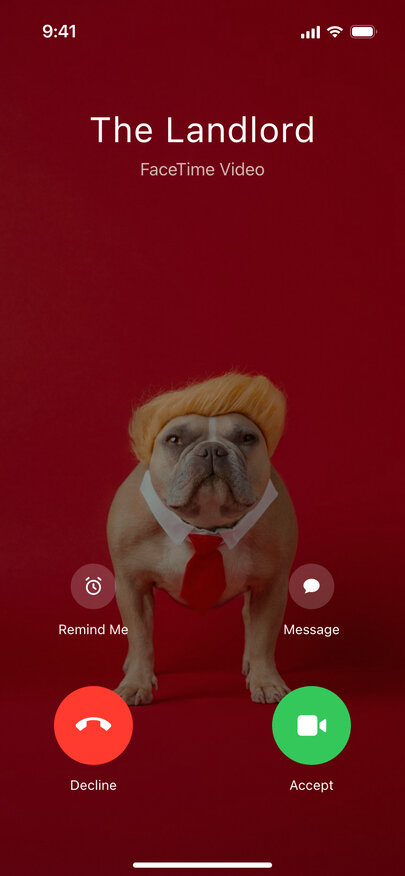
FaceTime Call Screen Generator recreates the screens an iPhone shows during a FaceTime call, so you can produce a fake FaceTime call picture without dialling anyone. The incoming call shows a name in large type with "FaceTime Video" or "FaceTime Audio" beneath it; an outgoing call says "Calling…"; a call in progress has the translucent control panel at the top with the speaker, camera, microphone, SharePlay and red close buttons.
It suits the classic joke of "look who is FaceTiming me" — a landlord, an ex, a dog in a wig — as well as video thumbnails, story illustrations and product slides that need an Apple-style video chat. Nothing about it requires an Apple ID, a Mac or an iPhone.
What You Can Set
- FaceTime Video or FaceTime Audio — the label under the name and the green answer button follow your choice.
- Your front camera behind an incoming video call — iOS shows your own face while a FaceTime Video call rings, so upload a selfie and it fills the background.
- A live video chat — the other person fills the screen and your picture floats in the corner as a picture-in-picture tile.
- Audio calls — a big round contact photo over a blurred copy of it, with the elapsed time in the panel.
- Panel buttons — show the microphone muted or the speaker on.
Need the same moment in another app? Use the tabs above the phone to open the WhatsApp or Instagram call screen generator.
How to create a fake FaceTime call
- Select video or audio, then the screen you need: ringing in, dialling out or already talking.
- Enter the contact name as it would appear in your contacts and add their photo.
- For video, add the picture your front camera sees and, during the call, the picture of the other person.
- Write how long the call has been running, and switch on Muted or Speaker On if needed.
- Save the finished picture or put it on your clipboard.
Frequently asked questions
Can I fake an incoming FaceTime call?
Yes. Leave the screen on "Incoming call", type the name and choose video or audio. For a video call, upload a selfie as your camera picture — that is what iOS shows behind the Decline and Accept buttons. For an audio call the contact photo is blurred into the background instead.
Does it look like the latest iOS?
It follows the current layout: the floating panel at the top during a call, the red button with a cross to hang up, and the Remind Me and Message shortcuts above Decline and Accept on an incoming call.
Can I add a FaceTime caller without a photo?
Yes. Without a photo the screen uses a dark grey background and a neutral contact silhouette, just like a contact who has no picture saved.
Is this connected to Apple?
Not at all. This is a standalone drawing tool: no call is placed, no Apple account is used, and the pictures you add remain on your device.
Usage Policy
A FaceTime screenshot can make it look as if someone was in touch when they were not. Using the FaceTime Call Screen Generator means accepting three limits: never fake a call from a real person to deceive, embarrass or pressure anyone, never imitate support staff or authorities, and never show a generated image as evidence. FaceTime and iPhone are trademarks of Apple Inc.; this tool is not endorsed by Apple, and whatever you make with it is your responsibility rather than 10015.io's.