 Text Tools
 Image Tools
 PDF Tools
 Social Media Tools
 Security Tools
 Coding Tools
 CSS Tools
 Color Tools
 Miscellaneous Tools
 Add to Chrome
 Add to Firefox
Puts the notifications you write on an iPhone lock screen — any app, any sender, any wallpaper — and saves it as a screenshot.
Lock Screen
Notifications
What is a Fake Notification Generator?
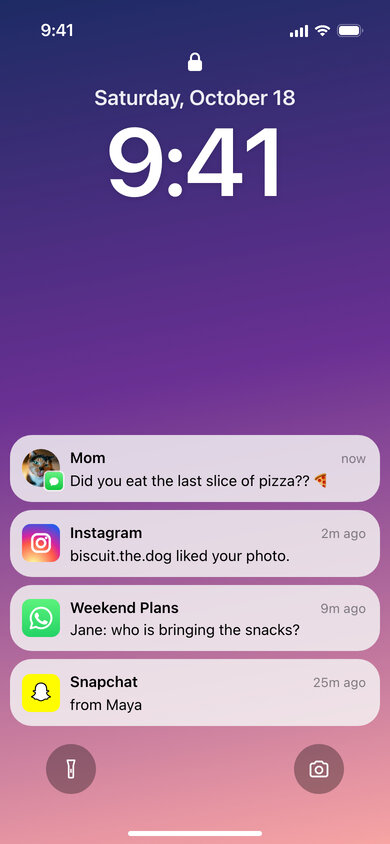
Fake Notification Generator draws an iPhone lock screen covered in notifications you write yourself. Pick the app each one comes from — Messages, WhatsApp, Instagram, Snapchat, TikTok, Messenger, Telegram, Discord, Facebook, X, Mail or Phone, or any other app with an icon you upload — type the title and the message, set how long ago it arrived, and it appears on the lock screen under the clock, exactly where iOS stacks them.
A single notification is often all a joke needs: the "Mom: did you eat the last slice of pizza??" that lights up at the wrong moment, the famous account that suddenly followed you, the missed call from your boss. The same screen is useful for app designers presenting push notification copy, for marketers previewing a campaign message on a real-looking phone, and for anyone making a short video or a slide about phone habits.
Notifications That Look Like iOS
- App icons — each app gets its own coloured icon; choose "Other App" to upload any icon and type the app name.
- Sender photos — add a photo to show the message the way iOS shows messages from people: a round photo with the small app icon on its corner.
- Titles and times — the bold title is the sender, the group or the app; leave it empty and the app name is used. The time reads "now", "5m ago" or anything you type.
- Light or dark cards — match the translucent notification style to the phone you are imitating.
- Wallpaper — five gradients, or upload your own photo for the background.
How to make a fake notification
- Set the clock and the date shown on the lock screen, and choose a wallpaper or upload one.
- Pick the app for the first notification; a typical title and message are filled in for you to change.
- Write the title and message, set the time and add a sender photo if the notification comes from a person.
- Add more notifications and put them in order — the first one sits at the top of the stack.
- Export the screenshot as an image or copy it to your clipboard.
Frequently asked questions
Can I make a fake Instagram notification?
Yes. Choose Instagram as the app and write the line Instagram would send, such as "biscuit.the.dog liked your photo." or "natalie started following you." Instagram notifications usually have no separate title, so leave the title empty.
How do I make an iMessage notification with a contact photo?
Pick Messages, type the contact's name as the title and upload their photo as the sender photo. The notification then shows the round photo with the green Messages icon in the corner, as iOS does for texts from your contacts.
How many notifications fit on the screen?
About five short ones. They stack upwards from above the flashlight and camera buttons, so a very long list runs into the clock — keep messages short, or split a long one over two notifications.
Is anything sent to my phone?
No. The tool only draws a picture in your browser; no notification is sent, and it does not connect to Apple or to any of the apps shown.
Usage Policy
Fake notifications are a favourite tool of phishing and "your account is locked" scams, so by using the Fake Notification Generator by 10015.io you agree not to imitate banks, payment apps, delivery companies or official services, not to fake messages from real people to deceive or upset anyone, and not to use a generated screenshot as evidence. Pranks among friends, design work and teaching are what it is for. The tool is not affiliated with Apple or with any of the apps whose icons it imitates, and 10015.io is not responsible for the images made with it.