Text Tools
 Image Tools
 PDF Tools
 Social Media Tools
 Security Tools
 Coding Tools
 CSS Tools
 Color Tools
 Miscellaneous Tools
 Add to Chrome
 Add to Firefox


Design a Twitch chat overlay, preview it with your live chat, and add it to OBS as a browser source. No login, no account.
Preview shows the channel's chat as it happens. No login: Twitch chat can be read by anyone.
Look
Filter
Your overlay link
Add it to OBS
- Copy the overlay link above.
- In OBS, click + under Sources and choose Browser.
- Paste the link as the URL, set the width to
400and the height to600, and press OK. - Drag it where you want the chat. The background is transparent.
- Changed the look? Copy the new link and paste it in the source's properties.
Works the same in Streamlabs Desktop, Twitch Studio, XSplit and vMix: add the link as a browser source.
What is Twitch Chat Overlay?
Twitch Chat Overlay puts your stream's chat on screen, so viewers watching the VOD, a clip or your YouTube and TikTok re-uploads can see it, and so can you while you play full screen. Choose a look, type your channel name to see your real chat in the preview, and copy one link into OBS. There is no account, no login and no Twitch permission to give: the overlay reads your public chat just as a viewer would.
Features
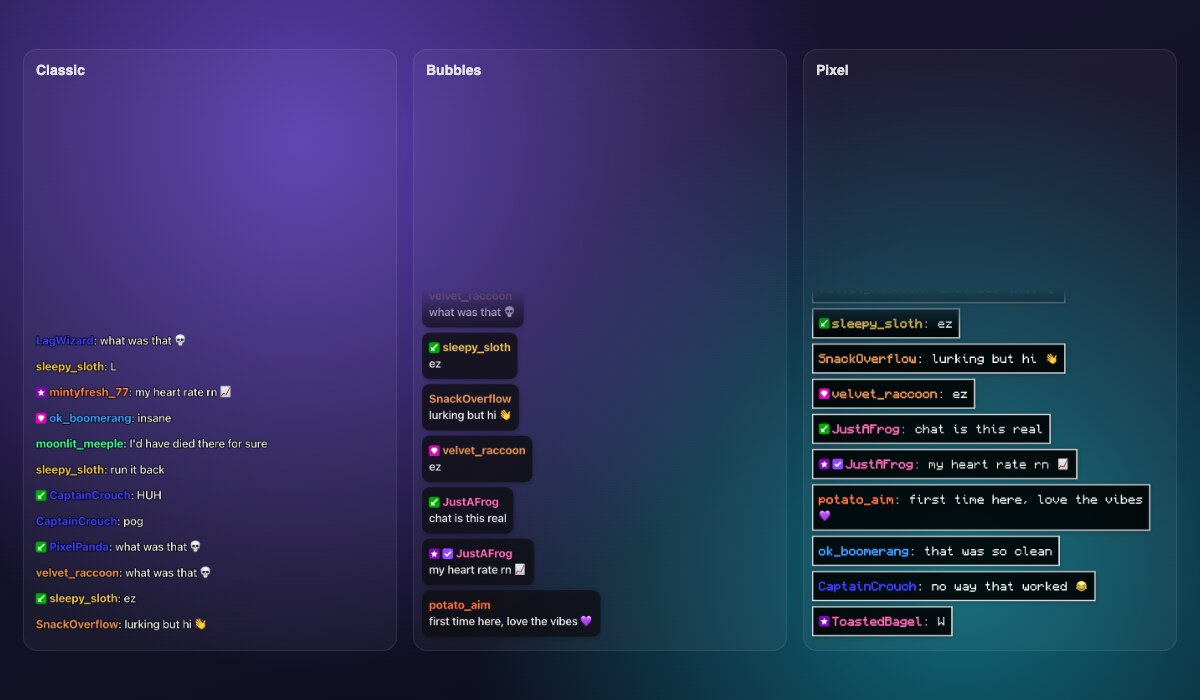
- Six themes: Classic (like Twitch), Bubbles, Outline (no background, readable on any game), Neon, Light cards and Pixel.
- Your style: five fonts, text size, slide, fade or pop animations, and a background behind the classic chat.
- Messages that fade after the seconds you choose, so the chat clears itself when nobody is talking.
- Badges and colours: each viewer's name colour, and badges for the streamer, moderators, VIPs, subscribers and verified accounts.
- Emotes: Twitch emotes, and your channel's 7TV, BetterTTV and FrankerFaceZ emotes.
- Clean chat: hide bots like Nightbot and StreamElements, and !commands; messages deleted by moderators and timed-out users disappear from the overlay too.
- Live preview of your real chat, or demo messages to try the look before you go live.
How to use Twitch Chat Overlay?
- Type your Twitch channel name and press Preview to see your chat (or watch the demo messages).
- Choose a theme, a font, a text size and an animation, and whether old messages fade away.
- Copy the overlay link.
- In OBS, add a Browser source, paste the link, set the size to 400 × 600 and press OK.
- Drag the chat where you want it. The background is transparent.
Frequently asked questions
How do I add Twitch chat to OBS?
Make your overlay here and copy its link. In OBS Studio, click the + under Sources, choose Browser, paste the link into URL, set a width of about 400 and a height of 600, and press OK. The chat appears with a transparent background; move and resize it like any source. Streamlabs Desktop, Twitch Studio, XSplit and vMix work the same way with a browser source.
Do I need to log in or connect my Twitch account?
No. Twitch chat is public, and the overlay reads it as an anonymous viewer, the way chat widgets on websites do. It cannot post, moderate or see anything private, and there is nothing to authorise or revoke.
Why is my overlay empty?
It only shows new messages, so it stays empty until someone chats. Check that the channel name in the link is right (the overlay shows a note if the channel does not exist), and that "Hide commands" or "Hide bots" is not hiding the messages you are testing with. If you set messages to fade, they also disappear after that many seconds.
Can I change the look later?
Yes. The whole look is in the link, so make your changes here, copy the new link and paste it into the browser source's properties in OBS. Nothing is stored on a server, and the link keeps working for as long as you use it.
Can I make a fake chat for a video?
Yes, with the Fake Twitch Chat Generator: write the messages yourself, play them in any of these themes and download a picture or a green screen video. For a gamer-style celebration, try the Achievement Generator.