Text Tools
 Image Tools
 PDF Tools
 Social Media Tools
 Security Tools
 Coding Tools
 CSS Tools
 Color Tools
 Miscellaneous Tools
 Add to Chrome
 Add to Firefox


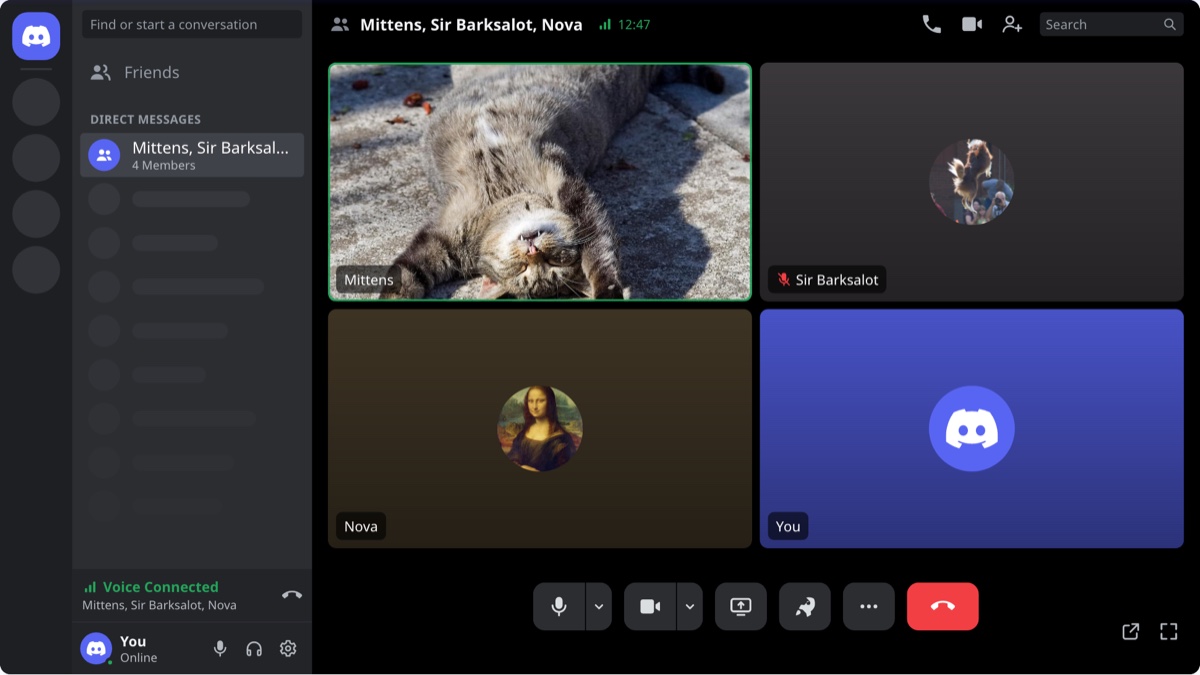
Recreates Discord's call screens on desktop and on a phone, for one caller or a group, as a downloadable image.
A desktop voice call shows round avatars, as Discord does. Choose Video call for the grid of tiles with names.
What is a Discord Call Screen Generator?
Discord Call Screen Generator draws the screens Discord shows around a private call, so you can make a fake Discord call picture without ringing anyone. Pick the desktop app or the phone app, choose who is in the call and what each person is doing, and save the result as an image. A call with one other person is a DM call; add more people and it becomes a group call.
It is made for memes and jokes ("look who is in the call"), video thumbnails, story and roleplay scenes, and slides or mockups that need a Discord call on screen. No Discord account is needed and nobody is called.
What You Can Set
- Desktop app or phone app: the desktop window with the server list, the direct messages and your user panel, or a full phone screen with the status bar.
- Four screens: an incoming call with its accept and decline buttons, a call that is still ringing, a voice call and a video call.
- DM call or group call: up to nine people including you, with an optional group name.
- Each person: display name, avatar, speaking (the green ring or border), muted and deafened.
- Cameras: in a video call, a picture for anyone whose camera is on. Everyone else shows their avatar on a coloured tile.
- Default avatars: with no picture, a person gets the Discord logo on blurple, green, yellow, red, fuchsia or grey.
- Your own controls: muting or deafening yourself changes the control bar and your user panel too.
For the chat around the call, use the tabs above the tool to open the Discord Message, Discord DM or Discord Profile generator.
How to make a fake Discord call
- Choose the desktop app or the phone app, then voice or video.
- Pick the screen: incoming call, ringing, or in the call. For a call in progress, write how long it has been running.
- Under People in the Call, type each name and add an avatar. Add a person to turn it into a group call.
- Tick Speaking, Muted or Deafened for each person. In a video call, add a camera picture for whoever has their camera on.
- Open You to set your own name, avatar and microphone.
- Use Export Screenshot to download the picture as a PNG or copy it.
Frequently asked questions
Can I make a fake Discord group call?
Yes. Every person you add under People in the Call joins the same call, up to nine with you. Give the group a name, or leave it empty and the names of the people are used, as Discord does for an unnamed group DM.
Can I fake an incoming Discord call?
Yes. Set the screen to "Incoming call". The desktop app shows the small call window with the caller's avatar, their name and the green and red buttons over the dimmed app; the phone app shows a full screen with Decline, Message and Accept. The first person in the list is the caller.
Why does the desktop voice call show only avatars?
That is how the desktop app shows a private voice call while no camera is on: round avatars in a row, a green ring around whoever is speaking and a red badge on anyone who is muted. Switch the call type to Video call to get the grid of tiles with each name on it.
How do I show someone with their camera on?
Choose Video call and "In the call", then add a picture to that person's Camera field. It fills their tile. People without a camera picture keep their avatar on a tile coloured after it.
What size is the picture?
The desktop window is saved at 2400 × 1350 pixels and the phone screen at 780 × 1688 pixels, as a PNG.
Is my work saved?
Yes, in this browser. The names, settings and pictures come back when you return to the page, and Start Over clears them. Nothing is uploaded: the pictures you add stay on your device.
Is this connected to Discord?
No. It is a drawing tool: no call is placed and no Discord account is used. It follows the look of the Discord apps, but small details can differ from the version on your device.
Usage Policy
A call screenshot can make it look as if people were talking when they were not. Using the Discord Call Screen Generator means accepting three limits: never fake a call with a real person to deceive, embarrass or pressure anyone, never imitate Discord staff, moderators or authorities, and never show a generated image as evidence. Discord is a trademark of Discord Inc.; this tool is not endorsed by Discord, and whatever you make with it is your responsibility rather than 10015.io's.