
 Text Tools
 Image Tools
 PDF Tools
 Social Media Tools
 Security Tools
 Coding Tools
 CSS Tools
 Color Tools
 Miscellaneous Tools
 Add to Chrome
 Add to Firefox
Draws a WhatsApp voice or video call on an iPhone screen, from the incoming call to the running timer, with the caller and photos you choose.
Call
What is a WhatsApp Call Screen Generator?
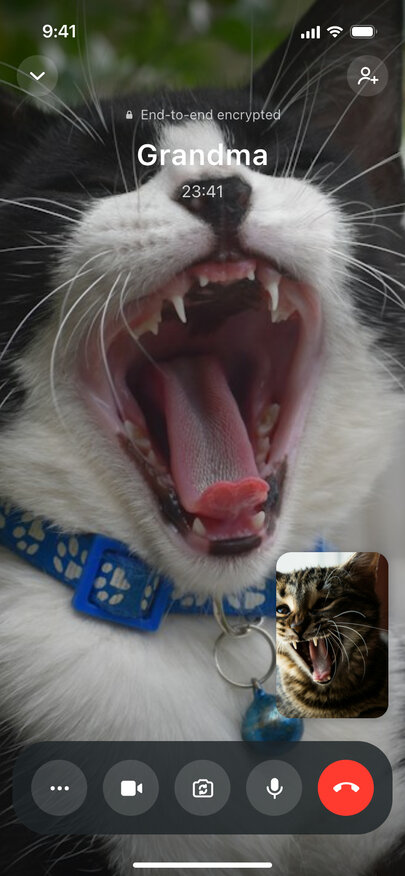
WhatsApp Call Screen Generator makes a fake WhatsApp call screenshot in a few clicks. Type who is calling, add their profile picture, choose between a voice call and a video call, and decide which moment of the call the picture shows: the phone ringing with Decline and Accept, the "Ringing" screen you see after dialling someone, or the call already running with its timer and the "End-to-end encrypted" line on top.
People use it to prove (jokingly) that Grandma rang at three in the morning, to stage a video call with a celebrity in a meme, or to illustrate a story about a call that never ended. App designers and teachers use it too, when a slide needs a WhatsApp call that looks like the real thing instead of a rough sketch.
Every Screen of a WhatsApp Call
- Incoming call — the full-screen iPhone ringing view with the caller name, "WhatsApp Audio..." or "WhatsApp Video...", Remind Me, Message, Decline and Accept.
- Ringing — the screen after you call someone, before they pick up.
- In the call — the caller name, the duration, a large round photo for voice calls, and the dark control bar with more, camera, speaker, mute and the red hang-up button.
- Video calls — the other person's camera image takes the full screen while yours goes into a small self view in the corner.
- Muted and speaker — light up the mute or speaker button the way WhatsApp does when they are switched on.
The caller photo is blurred behind the voice call, just as WhatsApp blurs the profile picture, so a single good picture is all a voice call needs. The tabs above the preview switch to the FaceTime and Instagram versions with the same settings.
How to make a fake WhatsApp call
- Pick a voice call or a video call.
- Choose the screen: ringing on your phone, ringing on theirs, or answered.
- Type the caller name and upload their profile picture.
- For a running call, type how long it has lasted, for example 23:41; for video, add the two camera pictures.
- Tick Muted or Speaker On if you want those buttons lit, then download the screenshot or copy it.
Frequently asked questions
Can I make a fake WhatsApp video call?
Yes. Set the call type to video and the screen to "In the call", then upload what their camera shows and what yours shows. Their picture covers the whole screen and yours sits in a small rounded window above the controls.
Why does the incoming call look like an iPhone call?
Because that is what really happens: on an iPhone, an incoming WhatsApp call uses the phone's own call screen, with "WhatsApp Audio..." under the name. The WhatsApp design with its encrypted label and control bar appears once the call is answered or while you are calling.
Can I show a long call duration?
Any duration works — type 4:12, 59:59 or 2:31:07 in the Call Duration field and it appears under the name exactly as written.
Does this call anyone?
No. Nothing rings and no WhatsApp account is involved; the picture is put together in your browser, and the photos you add are not uploaded anywhere.
Can I make the chat as well?
Yes — the WhatsApp Chat Generator draws the chat that goes with it, with voice notes, photos and blue ticks.
Usage Policy
Use of this generator comes with one rule — keep fake calls harmless: no screenshots meant to make someone believe a real person called them, no pretending to be a bank, a hospital or the police, and no using a generated call as proof in an argument, a dispute or a report. WhatsApp is a trademark of its owner and WhatsApp Call Screen Generator has no connection to it; the person who creates an image carries the responsibility for it.