Text Tools
 Image Tools
 PDF Tools
 Social Media Tools
 Security Tools
 Coding Tools
 CSS Tools
 Color Tools
 Miscellaneous Tools
 Add to Chrome
 Add to Firefox


An online speedrun timer with splits, PB and gold comparisons, hotkeys and an OBS-ready stream layout.
- Prologue52.81
- Forsaken City5:24.23
- Old Site11:12.93
- Celestial Resort19:08.11
- Golden Ridge25:48.20
- Mirror Temple34:00.53
- Reflection41:03.13
- The Summit51:37.08
- Previous segment
- —
- Best possible time
- 48:51.70
- Sum of best
- 48:51.70
- Possible time save
- 2.91
- Personal best
- 51:37.08
Hotkeys work while this page is focused. On a phone, tap the clock to split. Your splits, PB and history are saved in this browser.
| Segment | PB split | Best segment | |
|---|---|---|---|
Times are in real time; type 4:31.4 or 1:02:03. A PB split counts from the start, a best segment only that segment. “Start at” −1.5 counts down before the run.
What is Speedrun Timer?
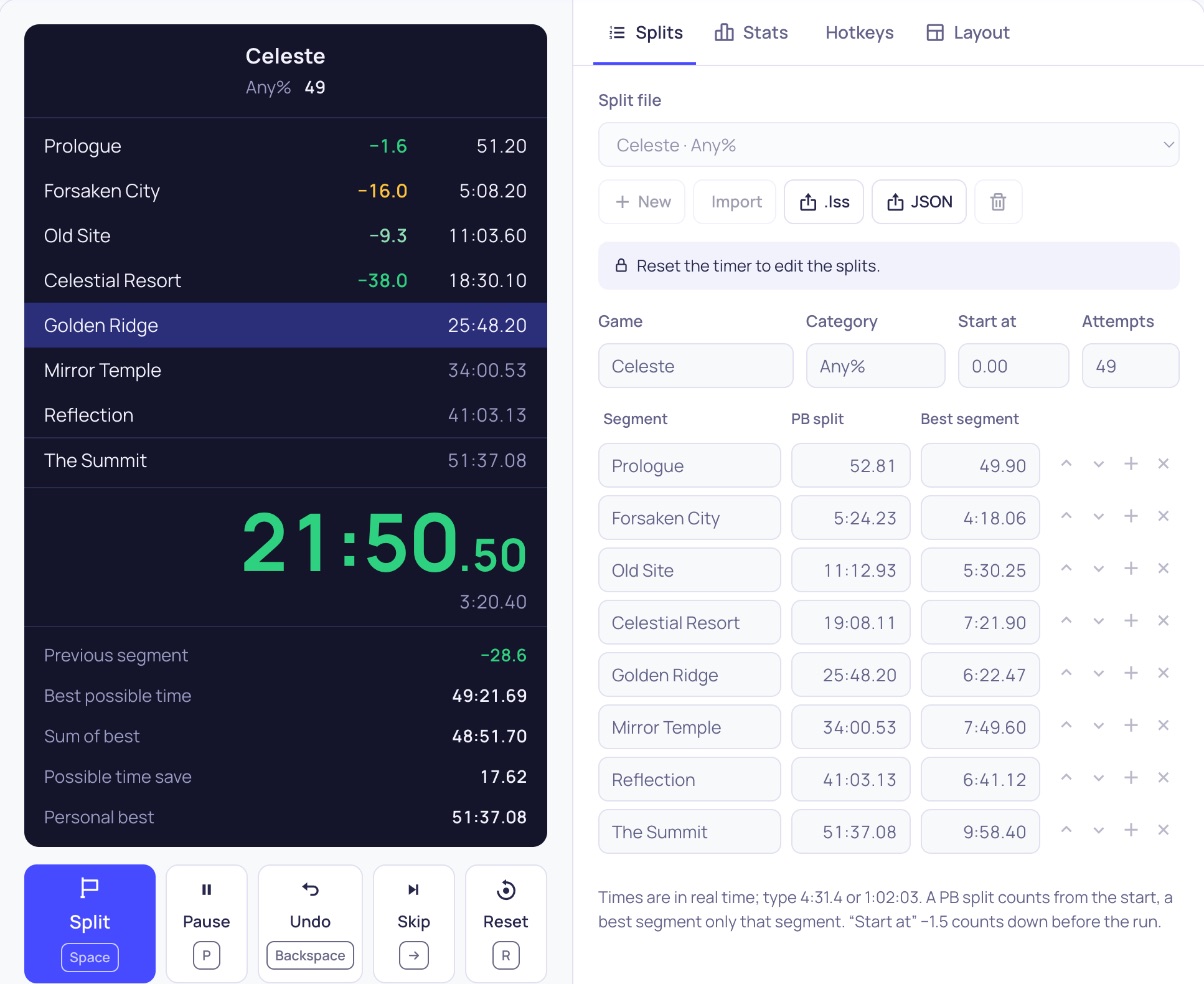
Speedrun Timer is a split timer for speedruns that runs in your browser. You list the segments of your route, press a key to start, press it again at the end of every segment, and the timer shows at each split whether you are ahead of or behind your personal best, which segment was a new best, how much time is still possible to save and what the best possible time of this run still is. It works for any game, any category and any route, from a 5-minute Any% to a 10-hour 100% run.
Nothing needs installing. The clock is driven by the browser's high-resolution timer and measured from the moment you start, not counted up frame by frame, so it does not drift while the tab is busy. Your split files, personal best, best segments and every attempt are saved in your browser; there is no account and nothing is sent to a server. It is a quick online speedrun timer for practice sessions, for a computer you cannot install software on, for a Mac or Chromebook, or for a laptop beside a console.
How to use the online speedrun timer
- Open the Splits tab and type the game, the category and one row per segment, such as the levels, bosses or chapters of your route. A sample split file is loaded so you can try everything first.
- If you already have times, type them in: the PB split is the time from the start of the run, the best segment is the fastest you have played that segment alone. Leave them empty for a new route; they fill in as you play.
- Press Space (or the Start button) to start the timer. Press Space again at the end of each segment to split. The last split ends the run.
- Made a mistake? Backspace undoes the last split, → skips a split you missed, P pauses and R resets. Every key can be changed in the Hotkeys tab.
- Reset when the run is over, finished or not. A finished run faster than your PB becomes the new PB, every faster segment becomes a gold best segment, and the attempt is added to the history.
Splits, deltas and gold splits
Every split row shows the segment's name, a delta and a time. Before you reach a split, the time column shows the comparison: the time at which your personal best reached that point. After you split, it shows your own time, and the delta tells you how far you are from the comparison: −12.4 means 12.4 seconds ahead, +3.1 means 3.1 seconds behind.
The colour of the delta says more than its sign. It follows the convention speedrunners know from desktop split timers:
- Bright green: ahead, and this segment gained time.
- Pale green: still ahead, but this segment lost some of the lead.
- Pale red: behind, but this segment won some time back.
- Red: behind, and this segment lost more time.
- Gold: the fastest you have ever played this segment, a new best segment, whatever the total.
While a segment is running, the delta appears live as soon as you fall behind the comparison or the segment is already slower than your best, so you see a lost segment before you reach the split. Under the clock, a smaller segment timer counts the current segment alone.
Comparisons: personal best, best segments and average
The timer compares your run with one of three references, which you switch under the controls at any time, even mid-run:
- Personal best: the splits of your fastest finished run. This is the race against yourself most runners watch.
- Best segments: every segment at its gold time, added up. Beating these splits means playing a run better than anything you have done, which makes it a demanding practice target.
- Average: the average time of each segment over all your attempts in the history. Useful for a newer route, or to see whether a run is a good one for you without comparing it with a lucky PB.
Sum of best, possible time save and best possible time
The sum of best adds your best time for each segment. It is the time of a run in which every segment goes as well as it ever has, a realistic ceiling for your PB. The difference between your PB and the sum of best is how much time your current route still has in it.
Possible time save is that difference for one segment: the PB's time for the segment minus its best time. The Stats tab lists it for every segment with a bar, so you can see where practice pays off most. A segment with a large possible time save is usually inconsistent and worth grinding; one close to zero is already played well in your PB. During a run, best possible time shows the time you would get if every remaining segment were a gold one: the moment it goes above your PB, the run can no longer beat it.
Real time and game time
Leaderboards time some games in real time (RTA), the wall-clock time from start to finish, and others in game time or load-removed time, where loading screens do not count so that faster hardware does not decide the ranking. The timer keeps both for every split. Press G during a load to pause game time only while real time keeps running, and press it again when the game continues. Switch the comparison between real time and game time with the toggle; your PB and best segments are kept for each method separately.
Pause (P) stops both clocks, for example when a game must be paused for a break in a casual run or a marathon. A negative Start at value, such as −1.50, makes the timer count down before the run starts, for games whose timing begins a moment after the first input.
Stream layout for OBS
The stream layout shows only the timer on a flat background, without the rest of the page, ready to be captured. Choose a dark or black background to show it as a panel on your stream, or a key colour, magenta or green, and add a Chroma Key filter in OBS so that only the splits and the clock remain over your game. Set its width in the Layout tab, open it full screen, or pop it out into its own small window and add that window as a Window Capture source.
The pop-out and the page share the same run: split in either window and the other one follows, since both read the same saved state. Hotkeys work in whichever of them has focus. Browsers do not pass keys to a page while you are playing in another program, so for a PC game in full-screen, keep the timer on a second screen and click it, or use the desktop app with global hotkeys for those runs; for console runs and emulators in a window, a focused browser tab works well.
Import and export split files
Already run with LiveSplit, the desktop split timer for Windows? Import its .lss split file and the timer reads the game and category, the segment names, your personal best splits and best segments in both real and game time, the attempt count, the start offset and the attempt history, from which it rebuilds the averages. Export goes the other way: Export .lss writes a split file the desktop app opens, with your PB, gold segments and history, so you can move between the two at any time. A JSON export keeps a full backup of one split file in a simple format.
Each game and category is its own split file. Keep as many as you like and switch between them in the Splits tab; each keeps its own attempt counter, PB and history.
Tips for timing your runs
- Split where the leaderboard does. Check the rules of your game's leaderboard for where timing starts and ends, and put the final split exactly there.
- Split on visible events, such as a level-complete screen or a door transition, so the segment times are comparable between attempts.
- Use skip, not undo, for a missed split. Skip keeps the run going and leaves that split empty, so no segment gets a wrong time; the next segment is not counted as a gold one.
- Reset every attempt, even a bad one. Resetting saves the gold segments you played and the attempt, which makes the averages and possible time save more accurate.
- Export now and then. Browser storage can be cleared with the site data, so keep a .lss or JSON copy of split files you care about.
Frequently asked questions
Is this speedrun timer free and online?
Yes. It is free, runs in any modern browser on Windows, macOS, Linux, ChromeOS, tablets and phones, and needs no download or account. Once the page has loaded it keeps working offline.
Is there a LiveSplit online version?
LiveSplit itself is a desktop program for Windows. This page is an independent online speedrun timer that works the same way, with splits, comparisons, gold segments and hotkeys, and it opens and saves .lss split files, so you can use it in the browser and keep your times in the desktop app's format.
How accurate is the timer?
The time is the difference between two readings of the browser's high-resolution clock, which is precise to well under a millisecond, and it is redrawn on every frame of the screen. Your reaction when pressing the split key matters far more than the clock: human splits vary by tens of milliseconds, which is why most leaderboards retime runs from video.
Do the hotkeys work while I play in another window?
No. For security, browsers only receive keys while their page is focused. The hotkeys work while this tab or its pop-out window is the active one, which suits console runs, emulators and games played on another screen. On a phone or tablet you can also tap the clock to split.
Where are my splits and personal best saved?
In your browser's local storage on this device. Nothing is uploaded. A run in progress is saved too, so a reloaded tab continues the same attempt. To move to another computer or browser, export the split file and import it there.
Can I edit my times by hand?
Yes, while the timer is reset. In the Splits tab, type a PB split (the time from the start) or a best segment (the segment alone) for any row in a format such as 4:31.42 or 1:02:03. You can also add, remove and reorder segments; the history moves with them.