Text Tools
 Image Tools
 PDF Tools
 Social Media Tools
 Security Tools
 Coding Tools
 CSS Tools
 Color Tools
 Miscellaneous Tools
 Add to Chrome
 Add to Firefox


Turn a CSV, Excel sheet or number series into thousands of QR codes: print-ready label PDFs or a ZIP
1. Your data
sample.csv: 6 rows, columns sku, name, store, price, color.
2. What each code holds
Type fixed text and put column names in braces: https://shop.com/p/{sku}?ref={store}. Each row fills in its own values.
Text on the label
Code style
Dots
Corners
Logo
Codes with a logo or a gradient go into the PDF as sharp pictures; plain ones as vectors that stay crisp at any size.
Print sheet
Label 63.5 × 38.1 mm. Print at 100% (actual size), not “fit to page”.
Row checker
| # | Status | Code data | Caption |
|---|---|---|---|
| 1 | Ready | https://shop.example.com/p/TS-1001?ref=berlin | Linen Shirt · TS-1001 |
| 2 | Ready | https://shop.example.com/p/TS-1002?ref=berlin | Canvas Tote · TS-1002 |
| 3 | Ready | https://shop.example.com/p/TS-1003?ref=paris | Wool Beanie · TS-1003 |
| 4 | Ready | https://shop.example.com/p/TS-1004?ref=paris | Denim Jacket · TS-1004 |
| 5 | Ready | https://shop.example.com/p/TS-1005?ref=london | Leather Belt · TS-1005 |
| 6 | Ready | https://shop.example.com/p/TS-1006?ref=london | Silk Scarf · TS-1006 |
What is Bulk QR Code Generator?
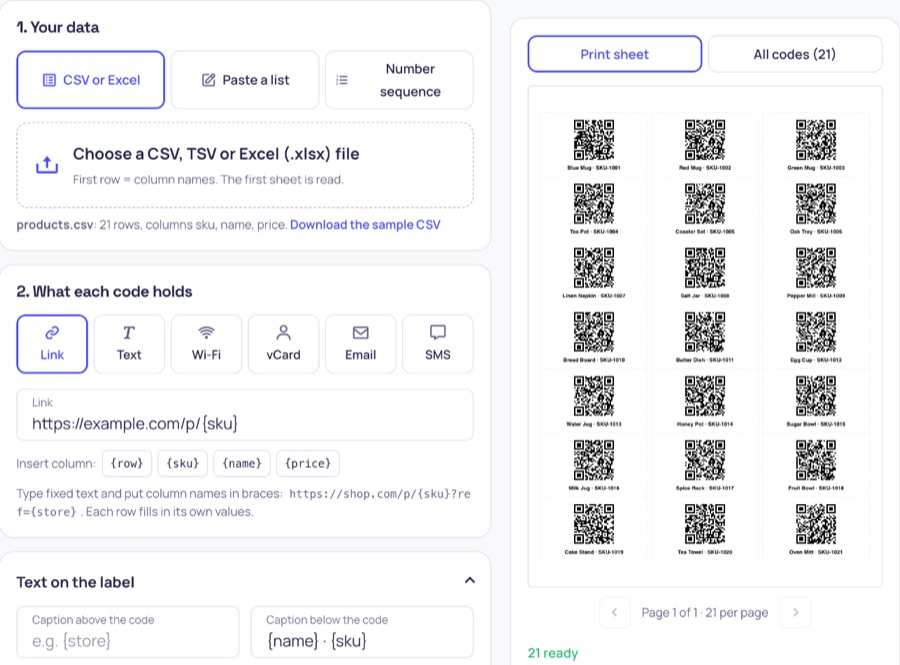
Bulk QR Code Generator makes many QR codes at once from a list. Upload a CSV or Excel file, paste one link per line, or let it count for you (TAG-0001 to TAG-0500), and every row becomes its own code with its own caption. You see the result the way it will come out of the printer: a live A4 or Letter sheet laid out for Avery labels, business cards or stickers, page by page. Download it as a multi-page PDF, or get every code as a PNG or SVG file in one ZIP, named and sorted into folders the way you choose.
It is free, needs no account and has no watermark. The codes are static, so they never expire: each link or text sits inside the pattern itself, not behind a redirect on somebody's server. And the whole batch is made in your browser: your product list, guest list or asset register is never uploaded.
How to generate multiple QR codes at once
- Bring your list. Choose a CSV, TSV or Excel (.xlsx) file whose first row holds the column names, paste a list with one item per line, or make a number sequence with a prefix, start, step, count, zero padding and suffix.
- Say what each code holds. Pick Link, Text, Wi-Fi, vCard, Email or SMS and write a template with column names in braces, such as
https://shop.com/p/{sku}?ref={store}. Click a column chip to insert it. - Add text to the label. A caption above and below the code, for example
{name} · #{sku}, sized in points and shrunk automatically when a name is long. Turn on a frame with a call to action like SCAN ME, which can also come from a column. - Style the codes with the same dots, corners, colours and logo as our single QR Code Generator, or give every row its own colour from a column of hex codes.
- Pick the sheet (Avery L7160, L7159, L7165, 5160, 5163, business cards, square stickers, one per page or your own grid) and check the live preview.
- Fix what the row checker finds, then download the PDF sheets or the ZIP of images.
QR codes from CSV or Excel
Most batches start in a spreadsheet: a product export from a shop, a list of rooms, a register of laptops and tools, a seating plan. Save it as CSV, or upload the .xlsx file directly; the first sheet is read in the browser without any upload. Commas, semicolons (as Excel saves CSV in much of Europe) and tabs are all recognised, quoted cells with commas inside stay whole, and a UTF-8 file keeps accents and other alphabets intact. Not sure about the format? Download the sample CSV, replace its rows with yours and upload it again.
Columns are what make a bulk generator useful. Instead of one long URL per row, keep the parts in separate columns and build the link with a template: https://example.com/menu/{table}, https://shop.com/p/{sku}?utm_source=label&utm_campaign={store}. The same columns fill the captions and the file names, so the code, the words printed next to it and the file it lives in all match.
Print QR code labels on Avery sheets
The print preview is the heart of the tool. It draws the page at its real proportions with every label in place, so you can see whether a long product name fits under a code on a 38 mm label before you waste a sheet. The presets follow the common Avery layouts: L7160 (21 per A4 sheet, 3 × 7), L7159 (24 per sheet), L7165 (8 large labels), 5160 (30 per US Letter sheet, 3 × 10), 5163 shipping labels, 2 × 5 business cards, 45 mm square stickers, and one code per page for posters and table signs. Any other sheet is a custom grid: set the columns, rows, margins and gaps from the label maker's template.
Already used half a sheet? Set Skip used labels and the batch starts where the blank ones begin. Crop marks put cut lines in the margin for cards and tags you trim yourself, and label outlines help when you print on plain paper. Always print at 100% or "actual size": "fit to page" shrinks the sheet and moves every code off its label.
The PDF keeps plain codes as vector shapes, so they stay razor sharp on a laser printer, a thermal label printer or at a print shop. Codes with a logo or a gradient are placed as high-resolution pictures.
Sequential and serial number QR codes
For asset tags, raffle tickets, inventory bins, event wristbands or numbered seats you often have no spreadsheet at all, just a range. The number sequence makes it for you: prefix TAG-, start 1, step 1, count 500, four digits, and you get TAG-0001 to TAG-0500. Each code can hold the serial itself or a link built from it, such as https://assets.example.com/{value}, while the caption prints the human-readable number. Steps other than one (every tenth number, even numbers) and a suffix are supported too.
The row checker: catch problems before printing
Printing a thousand labels and finding a broken code afterwards is expensive. Every row is checked as you work: empty rows are skipped, duplicates are pointed out with the row they repeat, data that is too long for the chosen error correction level is flagged with its size, links that do not look like valid web addresses are marked, and colours from a colour column that are too light to scan are caught. Click any row to fix its values in place without touching the original file, and the preview, the PDF and the ZIP follow.
Download a ZIP of PNG or SVG files
When the codes go into packaging artwork, a website or another design tool, download them as images. PNG comes at 512, 1024 or 2048 pixels wide; SVG is a vector that scales to any size. A file name pattern such as {row}_{name} or {sku} names every file (with zero-padded row numbers so they sort correctly), Folders by column sorts them into a folder per store, department or event, and a manifest.csv lists the row, file name and exact data of every code, so you can match files back to your spreadsheet. Big batches run with a progress bar and can be cancelled; the page stays responsive while they are made.
Bulk Wi-Fi, vCard, email and SMS codes
Links are the most common, but the same list can make other kinds of codes. Wi-Fi codes for every room or venue from columns with the network name, password and security. Contact cards (vCard) for a whole team from a staff list, ready for name badges and business cards. Email codes with a subject filled in, and SMS codes with a prepared message. The data is written in the formats phone cameras understand, the same as our single generator.
Free, no sign-up, and your list stays private
Many "bulk QR" services ask for an account, cap the free plan at a few dozen codes, or make dynamic codes that stop working when the subscription ends. Here there is no limit on how often you use it and nothing to cancel. A batch can hold up to 5,000 rows, which keeps the browser fast on ordinary laptops and phones; for more, split the file and run it in parts. Your settings and data are kept in this browser between visits, and Start over (with undo) clears them.
Tips for QR codes that scan every time
- Print codes at least 2 cm (0.8 in) wide for scanning at arm's length; on small labels keep captions short so the code gets the space.
- Shorter data means bigger dots. Keep links short and leave long tracking parameters out where you can.
- Dark dots on a light background. Light-on-dark and pale colours fail on many phones.
- Keep a quiet zone (margin) of at least two modules, more when the label has a busy background.
- Print one test sheet on plain paper, hold it against the label sheet to the light, and scan a few codes with two different phones.
Frequently asked questions
How many QR codes can I make at once?
Up to 5,000 per batch. Larger files are cut at 5,000 rows and the tool tells you; run the rest as a second batch.
Can I upload an Excel file?
Yes, .xlsx files are read directly (the first sheet, first row as column names). Old .xls files should be saved as .xlsx or CSV first. Google Sheets and Numbers can export CSV or .xlsx.
Do the QR codes expire?
No. They are static codes: the data is inside the pattern, so they work for as long as the link or text they hold is valid. There is no redirect and nothing to renew.
Which Avery labels are supported?
Presets for L7160, L7159 and L7165 on A4, and 5160 and 5163 on US Letter, plus business cards, square stickers and one per page. Compatible sheets from other brands with the same layout work too; for anything else, use a custom grid with the measurements from the label pack.
Can each QR code have a different colour?
Yes. Add a column with hex colours such as #1d1b3a and choose it as Colour per row. Rows without a valid colour use the default, and colours too light to scan are flagged.
Is my data uploaded anywhere?
No. Reading the file, drawing the codes and building the PDF and ZIP all happen in your browser. Nothing is sent to a server.
How do I scan or check the codes afterwards?
Point your phone camera at a printed label, or open a photo of a whole sheet in the QR Code Scanner, which reads every code in a picture. To make a single designed code, use the QR Code Generator; for product barcodes, the Barcode Generator.