Text Tools
 Image Tools
 PDF Tools
 Social Media Tools
 Security Tools
 Coding Tools
 CSS Tools
 Color Tools
 Miscellaneous Tools
 Add to Chrome
 Add to Firefox

Timers, a noise meter, a name picker and more on one board for the projector, free and without an account.
Drag a widget by its top edge, resize it by its corner. Saved in this browser.
What is Classroom Screen?
Classroom Screen is one board for the classroom's projector or smart board. You put on it what the lesson needs (a timer, the instructions, the voice level, a noise meter, a name picker) and the class sees it from every seat. Press Full screen, and the board fills the screen.
Everything is free and there is no account. Your board, your class list and your settings are kept in this browser, so the board you left is there when you come back.
The widgets
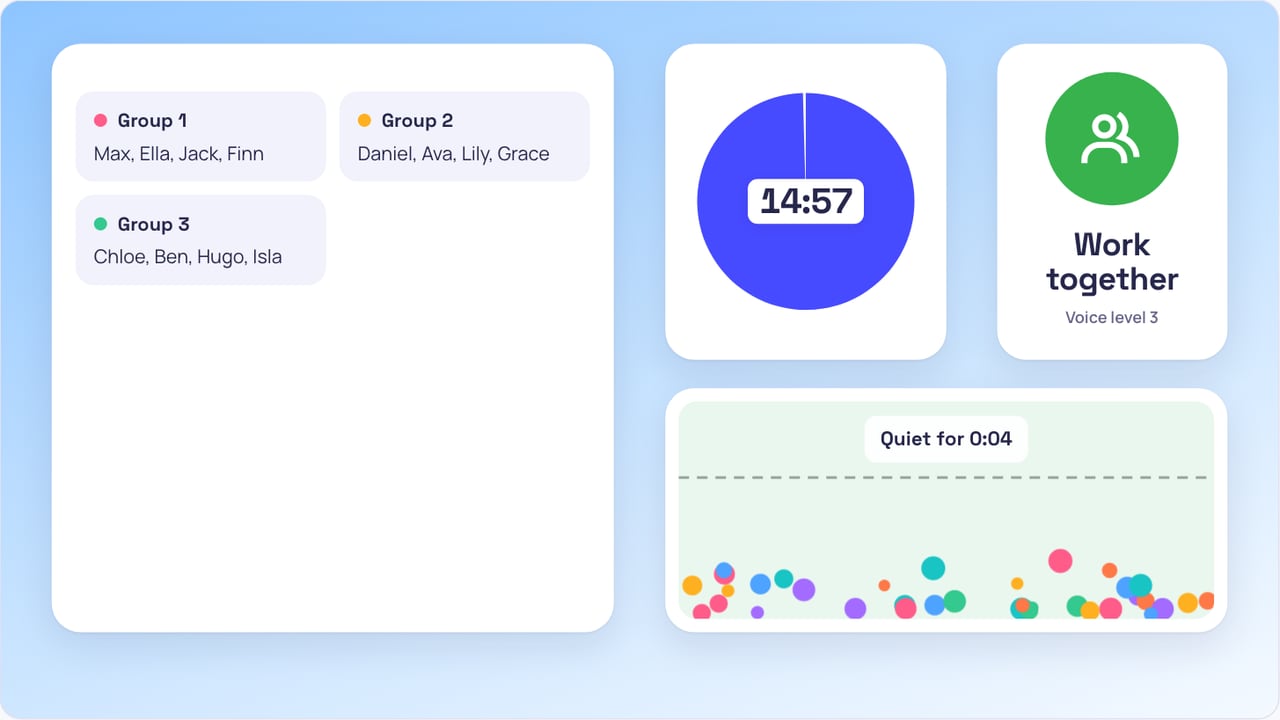
- Timer: a ring, a pie or plain digits, with quick buttons for 1, 3, 5, 10 and 15 minutes, a minute more or less while it runs, a chime, bell, gong or buzzer at the end, and repeats for timed rounds. Add several for different tasks.
- Noise meter: balls that jump higher the louder the room gets, a line you set as the limit, a count of how long the class has been quiet, and a shush when it gets too loud. Balls, bubbles or emoji bounce. The microphone is read in your browser and never recorded.
- Name picker: picks a name from your class list, can leave out the ones already picked, and can pick with a spinning wheel or a duck race, where the winning duck is the name.
- Groups: splits the class list into random groups of two to six, named by number, colour, animal or planet, and rotated from table to table.
- Traffic light: red, amber and green for stop, get ready and go.
- Work symbols: silent, whisper, talk to a partner, work together, raise your hand, listen, read and write, with voice levels 0 to 3.
- Text: instructions, the day's plan or a checklist, in three sizes.
- Clock and stopwatch: the time and the date, and a stopwatch with laps.
- Agenda: the lesson's steps, with the current one marked and the finished ones ticked off.
- Dice: one to three dice that roll when pressed, with their total.
- Scoreboard: two to four teams, a point with each press.
- Breathing: a ball that grows and shrinks to breathe with, for a calm brain break.
- Days until: how many days are left to a test, a trip or a holiday.
- QR code: any link as a QR code the class can scan.
- Timetable: the day's activities by time, the current one marked as the clock moves on, with a chime as each begins.
- Webcam: the camera, or a document camera, mirrored and turned as needed.
- Video and slides: a YouTube or Vimeo video, Google Slides, Canva or Spotify, from a link.
- Calendar, tally counter and link: the month with today marked, a counter that counts by 1, 5 or 10, and a page to open from the board.
- Document: a PDF, Word or Excel file to show and page through, kept in this browser and never uploaded.
- Picture and drawing: an image of your own, and a drawing board with a pen, a highlighter, lines, arrows, boxes and circles, smoothed lines, undo, and grid, lined or dotted paper, or a worksheet or question as a picture to draw on.
Ready-made scenes
A scene sets up the board for a moment of the lesson in one click: Start of class, Do now, Group work, Test mode, Brain break, Quiz game and End of class. Change anything on it afterwards.
Screens, like slides
Make a screen for each part of the lesson and step through them like slides, with the arrows in the bar, or with Page Up and Page Down on a keyboard or a presentation clicker. Copy a screen to start the next one from it. Each screen keeps its own widgets and background, and a background can be a picture or a GIF of your own.
Your phone as a remote
Press the phone button in the bar and scan the QR code. Your phone shows the screen's timers, name picker, dice, scoreboard, agenda and more as big buttons, so you can start a timer, pick a name or go to the next screen while you walk around the room. The phone and the board connect browser to browser; nothing passes through our servers.
How to use it
- Pick a scene, or add widgets with Add widget.
- Drag a widget by its bar to move it, and pull its bottom corner to resize it. It lines up with the other widgets as you drag; Tidy up under Scenes arranges them all.
- Add your students' names under Class list for the name picker and the groups.
- Choose a background, then press Full screen and put the board on the projector.
Frequently asked questions
Is it free? Do I need an account?
It is free, with every widget, and there is no account. The board is saved in the browser you use, so use the same browser on the classroom computer.
Can I use it in my language?
Yes. Choose your language with the globe in the bar: English, Spanish, Portuguese, German, French, Dutch, Italian, Polish, Turkish, Indonesian, Vietnamese, Thai, Arabic, Japanese or Korean. The board opens in your browser's language when it is one of these.
Does the noise meter record the class?
No. It reads how loud the microphone is, many times a second, and nothing else. No sound is stored or sent anywhere.
Does it work on an interactive whiteboard?
Yes. It runs in the browser of any smart board, laptop, Chromebook or tablet, and the widgets can be moved and pressed with a finger or a pen.