Text Tools
 Image Tools
 PDF Tools
 Social Media Tools
 Security Tools
 Coding Tools
 CSS Tools
 Color Tools
 Miscellaneous Tools
 Add to Chrome
 Add to Firefox


Check your monitor's real refresh rate in Hz, its frame timing, and motion at full, half and quarter rate.
Frame timing
LiveMotion test
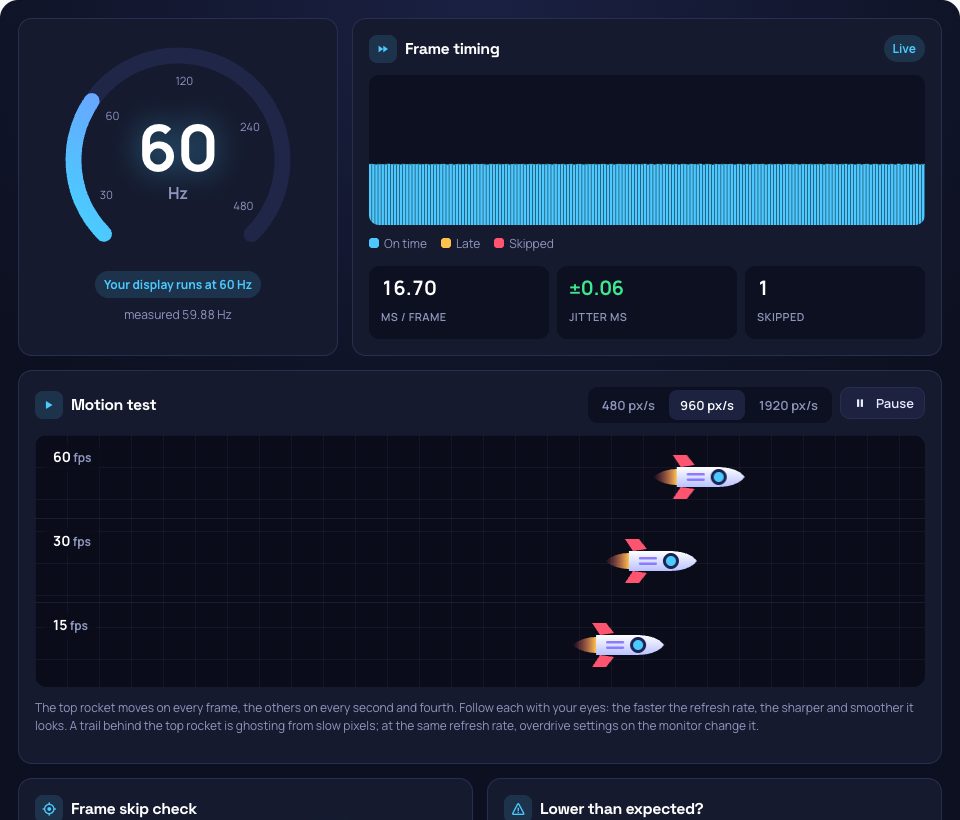
The top rocket moves on every frame, the others on every second and fourth. Follow each with your eyes: the faster the refresh rate, the sharper and smoother it looks. A trail behind the top rocket is ghosting from slow pixels; at the same refresh rate, overdrive settings on the monitor change it.
Frame skip check
One cell lights per frame. Take a photo with a slow shutter (1/10 s or so): if the lit cells in the photo form an unbroken run, no frames were skipped. A gap means the display or cable dropped frames, common when overclocking a monitor.
Lower than expected?
- Set the refresh rate in the system: Windows Display › Advanced display, macOS Displays › Refresh rate.
- Use a DisplayPort or HDMI 2.0+ cable; older HDMI caps 1440p at 60 Hz.
- Battery saver and low-power modes often hold the browser at 60 Hz.
- With two screens, move this window to the one you want to measure.
What is Online Refresh Rate Test?
Refresh Rate Test measures the refresh rate your monitor is actually running at, the number of times a second it draws a new picture. The browser draws in step with the display, so timing a few hundred frames gives the true rate: 60 Hz for most screens, 120 Hz and up for gaming monitors and recent phones. It is the quickest way to check that a new 144 or 240 Hz monitor is not quietly stuck at 60. Below the reading, a live graph shows every frame's timing, and three rockets move at full, half and quarter rate so you can see what a higher refresh rate does to motion.
What It Shows
- Refresh rate: measured from the frame timing and matched to the standard rate it is closest to, from 24 to 540 Hz.
- Frame timing: the time of each frame on a live graph, with jitter, and late or skipped frames in amber and red.
- Motion test: rockets at full, half and quarter frame rate at three speeds, to see blur, ghosting and stutter.
- Frame skip check: one cell lights per frame; a long-exposure photo shows whether any frame was dropped.
How to use Online Refresh Rate Test?
- Open the page on the screen you want to test and keep the tab in front.
- Wait a few seconds for the reading to settle.
- Watch the motion test, and change the speed to see the difference more clearly.
- If the number is lower than your monitor is sold as, set the refresh rate in your system display settings and reload.
Frequently asked questions
Why does my 144 Hz monitor show 60 Hz?
Usually the system is still set to 60 Hz: choose the higher rate in Windows Settings › Display › Advanced display, or in macOS Displays. The cable matters too: use DisplayPort or a high-speed HDMI cable. On laptops, battery saver can lock the screen and the browser to 60 Hz.
Is the measurement accurate?
Yes, to within a fraction of a hertz, as long as the tab stays in front and the computer is not busy. A background tab, a heavy game, or variable refresh rate (G-Sync, FreeSync) with an uneven frame rate can make the reading jump; the frame timing graph shows when that happens.
What refresh rate do I need?
60 Hz is fine for work and video. 120 to 165 Hz makes scrolling and games feel much smoother, and 240 Hz or more mostly helps fast competitive games. The motion test shows the difference on your own screen.