Text Tools
 Image Tools
 PDF Tools
 Social Media Tools
 Security Tools
 Coding Tools
 CSS Tools
 Color Tools
 Miscellaneous Tools
 Add to Chrome
 Add to Firefox


Find dead and stuck pixels, backlight bleed and banding with full-screen colours, and fix stuck pixels.
Black
1 / 12Bright dots are stuck pixels. Light seeping in at the edges is backlight bleed.
← → or a click to change colour · Esc to leave
Your display
Stuck pixel fixer
A stuck pixel shows one colour all the time; flashing it through every colour for 10 to 20 minutes can free it. Drag the flashing square over the pixel. Dead (always black) pixels cannot be fixed this way.
What is Online Dead Pixel Test?
Dead Pixel Test fills your whole screen with one colour at a time so faulty pixels have nowhere to hide. A dead pixel stays black on a white screen; a stuck pixel shows as a bright dot of the wrong colour on black or on another colour. Twelve test screens go further: dark grey for clouding and OLED burn-in, grey for uneven panels, gradients for colour banding, and a fine checkerboard for scaling and cable problems. Check a new monitor, laptop, TV or phone before the return window closes.
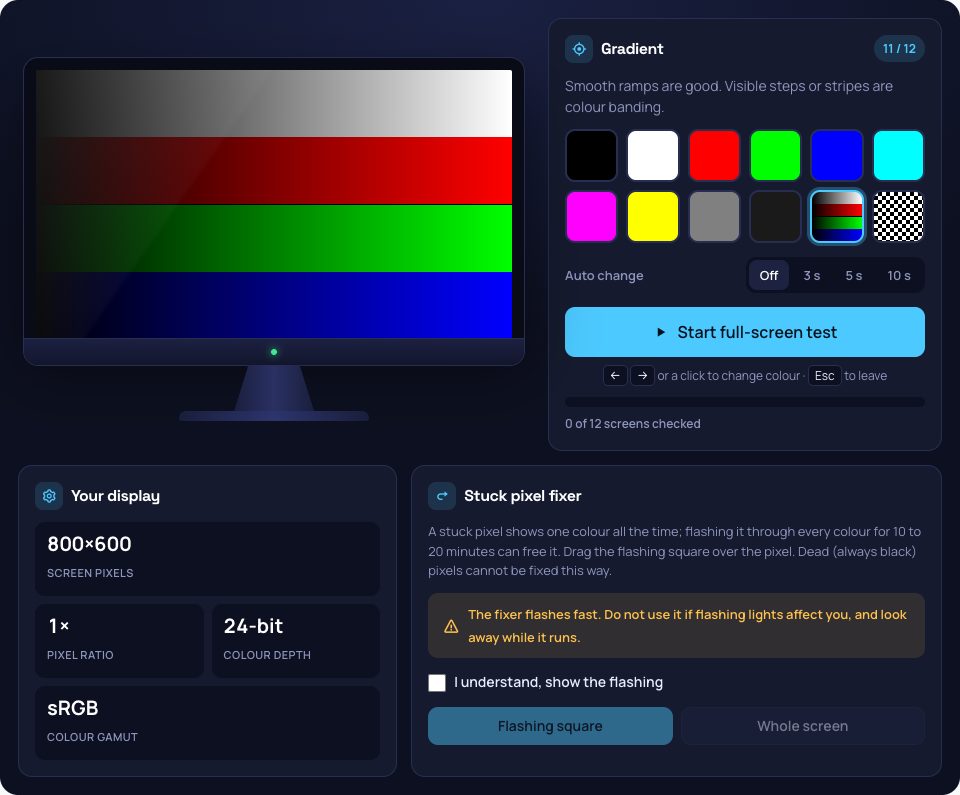
The Test Screens
- Black: stuck pixels glow, and backlight bleed shows at the edges and corners.
- White: dead pixels are black dots.
- Red, green, blue, cyan, magenta and yellow: find single stuck or missing subpixels.
- Grey and dark grey: uneven brightness, tints, clouding and burn-in.
- Gradient: grey, red, green and blue ramps show colour banding.
- Checkerboard: one-pixel checks show scaling blur, moiré and flicker.
How to use Online Dead Pixel Test?
- Clean the screen first: dust looks like a dead pixel.
- Press "Start full-screen test".
- Click, or press the right arrow, to go through the colours; look over the whole screen on each. Turn on Auto change to go through them hands free.
- Press Esc to leave. If you found a stuck pixel, run the stuck pixel fixer over it.
Frequently asked questions
What is the difference between a dead and a stuck pixel?
A dead pixel gets no power and stays black on every colour. A stuck pixel has one or more subpixels always on, so it shows as a red, green, blue or white dot, most visible on black. Stuck pixels can sometimes be fixed; dead ones cannot.
Does the stuck pixel fixer work?
Sometimes. Flashing the pixel through every colour for 10 to 20 minutes frees a fair share of stuck pixels, especially new ones. If it does not help after a few tries, the panel may need a warranty claim. The fixer flashes fast, so do not use it if flashing lights affect you.
How many dead pixels are acceptable?
It depends on the maker's pixel policy. Many follow ISO 9241-307 class II, which allows a few faulty pixels on a large panel, while some brands promise zero bright pixels. Test as soon as the screen arrives and check the policy before the return window ends.