Text Tools
 Image Tools
 PDF Tools
 Social Media Tools
 Security Tools
 Coding Tools
 CSS Tools
 Color Tools
 Miscellaneous Tools
 Add to Chrome
 Add to Firefox


Measures stick drift, jitter and snapback up close and gives the deadzone to set in Fortnite, Call of Duty and more.
Connect your controller and press any button
Browsers only reveal a controller once a button has been pressed. Works with PlayStation, Xbox, Switch Pro and most other controllers, over USB or Bluetooth.
- USB: plug the controller in with a USB-C (PS5) or micro-USB (PS4) cable.
- Bluetooth: hold Create (Share on PS4) and the PS button until the light bar flashes, then pair it in your Bluetooth settings.
What is this Stick Drift Test?
A Stick Drift Test that does more than say yes or no. Connect a controller, put it down and let the sticks rest: it records where each one sits for 5 to 30 seconds, draws it up to ten times closer than a normal tester so drift of a few percent is plain to see, and tells you how bad it is. Then it measures what a quick check misses: snapback after a flick, the deadzone some controllers hide inside, and how far each stick reaches. At the end you get the deadzone to set in your game, written the way that game shows it.
What it measures
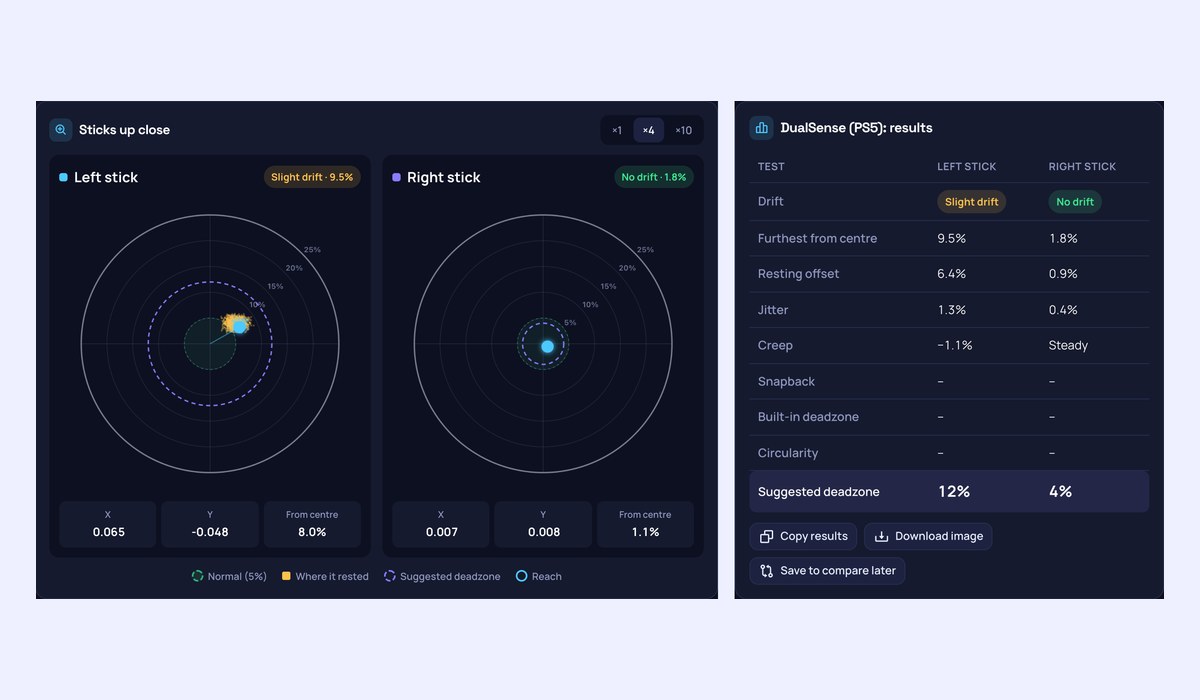
- Drift at rest: how far from the centre each stick strays when nobody touches it, where it settles on average, how much it shakes (jitter), sudden spikes and whether it creeps further over time, with a chart of the whole recording.
- Up close: zoom the scopes ×4 or ×10, with the 5% normal zone and every resting reading drawn.
- Snapback: push a stick to the edge and let go. A worn spring flies past the centre, which a game reads as a flick the other way.
- Built-in deadzone: some controllers report nothing until a stick has moved a few percent. The test finds that, because it hides small drift from every game too.
- Reach and circularity: how far a stick gets in every direction against a perfect circle.
- Your game’s deadzone: the value for Fortnite, Call of Duty, Apex Legends, Overwatch 2, Battlefield 6 and Rocket League, for each stick.
- Before and after: save a result, clean or repair the stick and compare. Copy the results or download them as an image.
How to use the Stick Drift Test
- Connect the controller over USB or Bluetooth and press any button.
- Press “Start drift test”, put the controller down and take your hands off until it finishes.
- Go through Snapback, Built-in deadzone and Reach if you want the full picture.
- Read the suggested deadzone, and the value for your game underneath.
How much stick drift is normal?
No stick rests at exactly zero. Up to 5% from the centre is normal for a working controller, and most games’ default deadzones hide it. From 5% to 10% is slight drift: you may notice a slow creep with a low deadzone. From 10% to 20% the character or camera moves on its own, and past 20% the stick needs cleaning or replacing. A steady offset is easier to live with than a stick that jitters or creeps, because a deadzone just above it hides it for good.
What causes stick drift?
Most sticks measure their position with potentiometers: carbon tracks with a contact sliding over them. Wear and dust on those tracks make the reading wander, and a tired centring spring stops the stick from coming all the way back. That is why drift tends to grow over months of play. Sticks built on Hall effect or TMR sensors measure magnets without touching them, so they do not wear the same way.
Frequently asked questions
How do I fix stick drift?
For now, set your game’s deadzone to the value this test suggests. Cleaning often helps when dust is the cause: blow compressed air around the base of the stick, or work a little isopropyl alcohol in while rolling it around, with the controller off. If it keeps coming back, the stick module is worn and needs replacing; a controller under warranty can go back to the maker. Save your result first, then test again afterwards to see what changed.
Does it work for Joy-Con drift?
Yes, with Joy-Cons or a Switch Pro Controller paired with your computer over Bluetooth, in Chrome or Edge. The same goes for PS5, PS4, Xbox and most other controllers, over USB or Bluetooth.
Why does my stick show exactly 0.000?
A reading that stays at exactly zero means the controller, or its driver, is rounding small movements away. Run the built-in deadzone test: if the stick jumps straight to a few percent when you push it slowly, drift smaller than that cannot show, here or in a game.
Is a higher deadzone bad?
A deadzone ignores everything inside it, so small, precise aim movements need a bigger push. Keep it as low as hides the drift: that is why the suggestion is the drift measured plus a 2% margin, and why it is given for each stick. Snapback usually matters for aiming, so it gets its own, higher value.
Is my data sent anywhere?
No. Your browser reads the controller and every measurement runs on your device. A saved result stays in this browser.
To check every button, the triggers and vibration as well, use the Controller Tester.