Text Tools
 Image Tools
 PDF Tools
 Social Media Tools
 Security Tools
 Coding Tools
 CSS Tools
 Color Tools
 Miscellaneous Tools
 Add to Chrome
 Add to Firefox

A big countdown for the projector, as a pie, a ring or digits, with a sound at the end.
Space start and pause · ↑ ↓ a minute more or less · R start over · F full screen
What is Classroom Timer?
Classroom Timer is one large countdown, readable from the back of the room. Pick 1, 3, 5, 10, 15 or 30 minutes with one click, or type any time such as 7 or 2:30, press Start, and put it in full screen on the projector or the smart board.
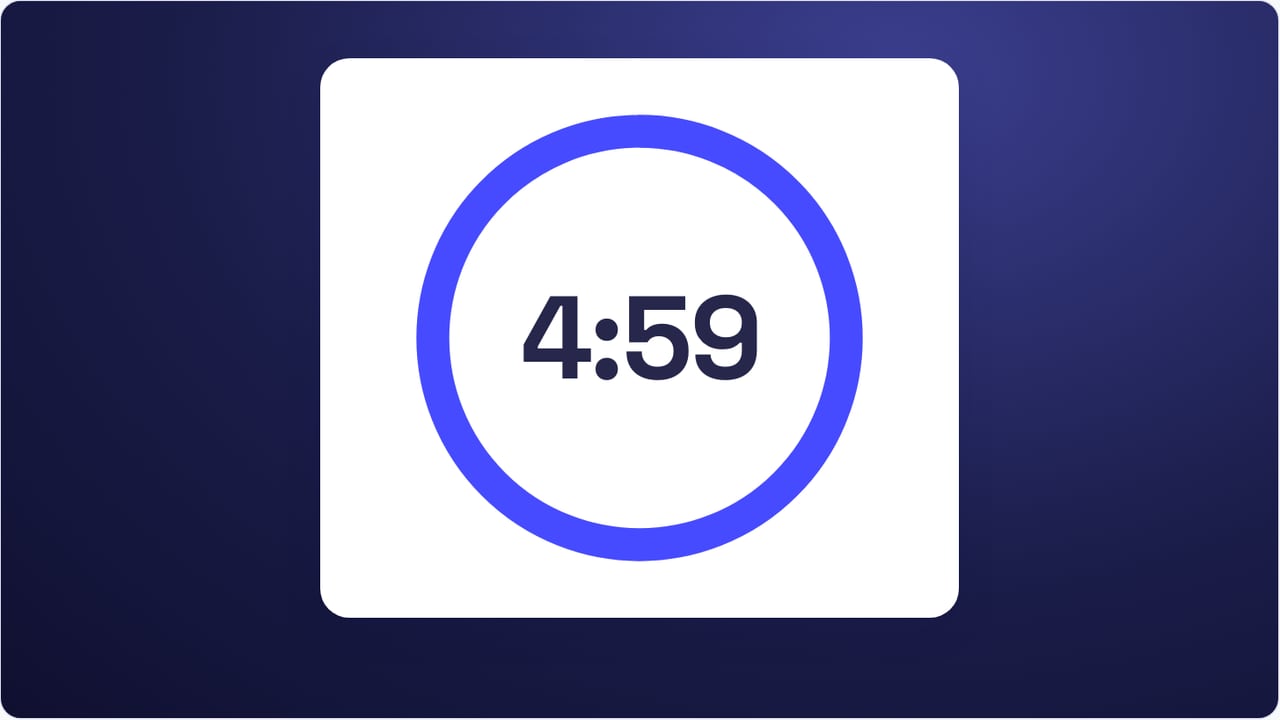
A timer children can read
The pie shows the time left as a coloured part that shrinks towards the top, like a kitchen timer: children who cannot read a clock yet see how much is left. Turn the numbers off to show only the pie. The ring empties around the numbers, and digits fill the screen for a test. The colour turns amber in the last fifth and red in the last ten seconds.
Sounds and rounds
Choose a chime, a bell, a gong or a buzzer for the end, or no sound. For stations, practice sets or a round-robin, set 2 to 10 rounds: the timer starts again by itself after each one and shows which round it is on.
How to use it
- Pick the minutes, or type a time under Other.
- Choose a pie, a ring or digits, the sound and the background.
- Press Start (or Space), and the full-screen button (or F) for the projector.
- Add or take away a minute with the arrow keys while it runs; R starts it over.
Need more than a timer?
Take the timer to the Classroom Screen with the button under it, and it opens there as it is, with room beside it for a noise meter, a name picker, groups, a traffic light or the lesson's instructions.
Frequently asked questions
Does the timer keep running if I switch tabs?
Yes. It counts towards a set moment, so it stays right while the tab is in the background, and even after the page is reloaded.
Is it free? Do I need an account?
It is free and there is no account. Your last settings are kept in this browser.
Can I set a time that is not on the buttons?
Yes. Type minutes (7), minutes and seconds (2:30), hours (1:00:00) or seconds (90s) and press Set.