Text Tools
 Image Tools
 PDF Tools
 Social Media Tools
 Security Tools
 Coding Tools
 CSS Tools
 Color Tools
 Miscellaneous Tools
 Add to Chrome
 Add to Firefox

Turn a picture into a 1-bit or retro-palette image with error diffusion or ordered dithering, with big chunky pixels if you like.
Or drop or paste a picture. It stays on your device.
Looks
Download
What is Image Dithering?
Dithering draws a picture with only a few colours, often just black and white, and fakes every shade in between with patterns of dots. It is the look of classic Macintosh and Game Boy graphics, old newspapers and fax machines, and of indie games like Return of the Obra Dinn. Image Dithering applies it to any picture, with 15 dithering methods and a choice of retro palettes.
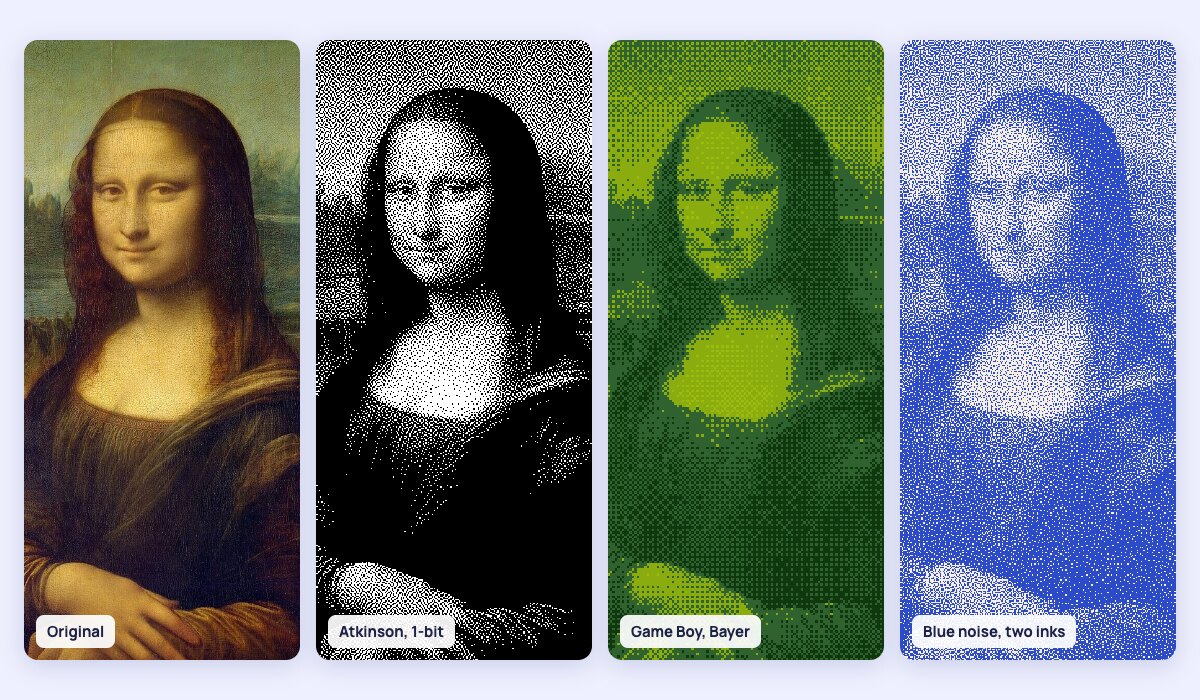
Dithering methods
- Error diffusion: Floyd–Steinberg, Atkinson (the classic Mac look), Jarvis–Judice–Ninke, Stucki, Burkes, Sierra, Two-row Sierra and Sierra Lite. Each pixel's rounding error is passed on to its neighbours, for organic, detailed results.
- Ordered dithering: Bayer 2×2, 4×4 and 8×8 for the crosshatched pixel-art pattern, clustered dots for a printed halftone look, and blue noise for an even, grain-like texture without any visible pattern.
- Random noise and plain threshold (no dithering) to compare.
Palettes
- Black and white (1-bit), 4 greys, or two colours of your choice for a risograph or screen print feel.
- Game Boy greens, PICO-8, Commodore 64, CGA and 8-colour RGB.
- The picture's own colours: the 2 to 32 colours that best represent it.
How to use Image Dithering?
- Upload, drop or paste a picture. A sample portrait is loaded to start with.
- Pick a look, such as Classic Mac, Game Boy or Risograph print, or choose the method and palette yourself.
- Raise the pixel size for bigger, chunkier pixels, and adjust the brightness and contrast: dithering is very sensitive to them.
- Hold the eye button to compare with the original.
- Download the PNG at full size, or with one pixel for each dithered pixel for games and pixel art.
Frequently asked questions
What is the best dithering algorithm?
It depends on the look. Floyd–Steinberg keeps the most detail and is the usual choice for photos. Atkinson gives brighter, higher-contrast results with clean whites, the look of early Mac software. Bayer makes a regular crosshatch that is great for pixel art and animation, because it does not flicker between frames. Blue noise is the most even and natural-looking of the ordered methods.
How do I make a 1-bit image?
Choose the Black and white palette. Every pixel of the result is either pure black or pure white. Download the PNG with one pixel per dithered pixel to keep the file tiny and crisp; it can be scaled up without blurring in any pixel-art editor.
Why does my dithered image look too dark or too grey?
With only two colours, mid-tones become a dense pattern that can look muddy. Raise the contrast and the brightness a little, lower the dither amount, or use a bigger pixel size so the pattern reads as texture rather than noise. Atkinson also lightens shadows, because it passes on only part of the error.
Is my image uploaded?
No. The dithering happens in your browser, on your device; the picture is never sent anywhere. For other print-inspired effects, try the Halftone Generator, Pixel Sorting or the Pixel Art Converter.