Text Tools
 Image Tools
 PDF Tools
 Social Media Tools
 Security Tools
 Coding Tools
 CSS Tools
 Color Tools
 Miscellaneous Tools
 Add to Chrome
 Add to Firefox


Turn an iPhone Live Photo into a GIF: trim, bounce, size it and see how heavy it will be before you make it. Nothing is uploaded.
Going the other way? Turn a video into a Live Photo or a Motion Photo.
How to bring a Live Photo here
An iPhone hands a website only the picture of a Live Photo, never its video. So save it as a video first, in two taps, and choose that:
- In Photos, open the Live Photo and tap ⋯
The More button, at the top right on most iPhones. On iOS 15 or older, tap Share instead.
- Tap Save as Video
A video of the Live Photo, with its sound, appears right after it in Photos.
- Come back here and choose that video
Tap Choose a video › Photo Library. It is the newest video. Then turn it into a GIF.
No Save as Video in the menu? The photo’s effect is set to Loop, Bounce or Long Exposure, or Live is switched off for it. Open it, tap the LIVE button at the top left and choose Live.
What is Live Photo to GIF?
Live Photo to GIF makes an animated GIF out of an iPhone Live Photo: the three seconds of movement around the picture, looping, in a file you can put in a chat, a post, an email or a slide. The Photos app can save a Live Photo as a video but not as a GIF, so this is the missing step. Choose the part to keep, how it plays (normal, bounce or reverse) and how big it is, and the page shows the GIF at its real frame rate, and about how heavy it will be, before you make it. Everything happens in your browser, on your device.
What makes it different
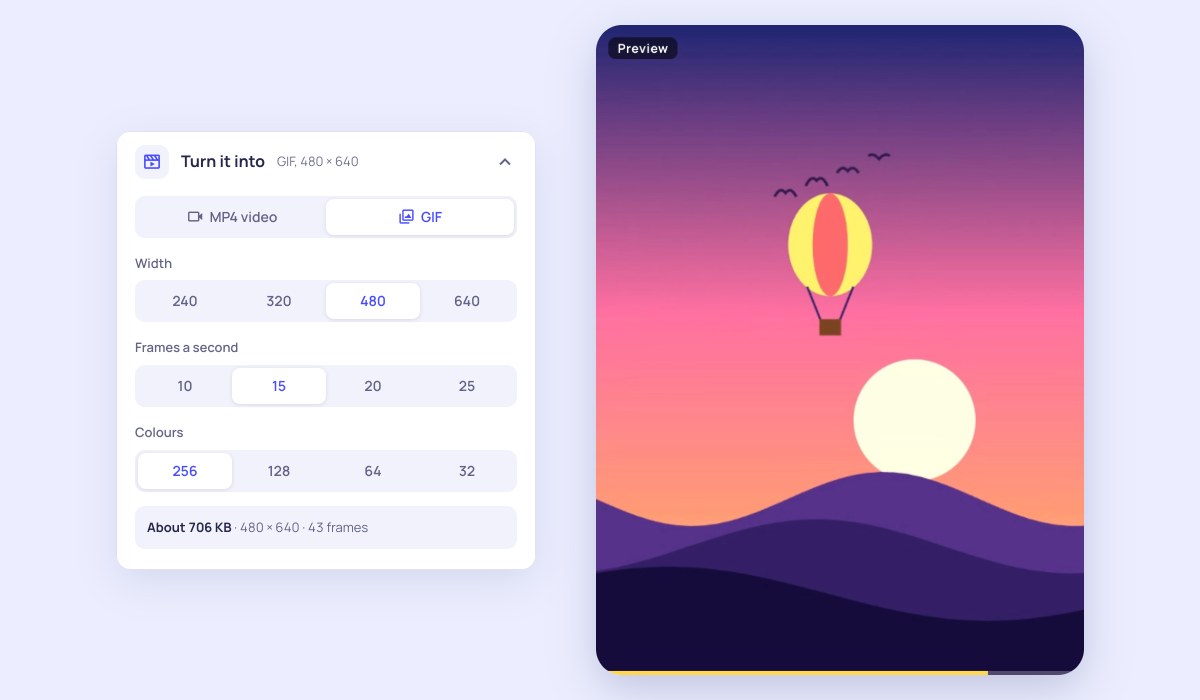
- The size before you make it: GIFs get heavy fast. The page works out the file size from real frames as you change the width, the frames a second and the colours, and warns when it passes what chats and sites accept.
- A true preview: it plays at the GIF’s own frame rate, so you see how smooth 10, 15, 20 or 25 frames a second really look.
- Bounce and reverse: play it there and back, like the Bounce effect in Photos, or backwards, at half to double speed.
- Trim to the moment: drag the ends of the strip of frames to keep only the part that matters, which is also the best way to make a GIF lighter.
- Any shape: keep the Live Photo’s own, or crop it square, 4:5, 9:16 or 16:9.
- Nothing is uploaded: the GIF is made on your device, with no watermark and no limit.
How to turn a Live Photo into a GIF
- On an iPhone: open the Live Photo in Photos, tap the ⋯ button and choose Save as Video. An iPhone hands a website only the still of a Live Photo, so this step comes first.
- Tap Choose a video and pick that video. On a computer: drop the Live Photo’s .MOV, the photo with its .MOV, or a .zip of them, on the page.
- Trim it, and choose Normal, Bounce or Reverse.
- Pick a width, frames a second and colours; watch the estimated size.
- Press Make the GIF, then Save to Photos on an iPhone or Download on a computer.
Frequently asked questions
Can an iPhone make a GIF from a Live Photo by itself?
Not as a file you can choose settings for. Photos can show a Live Photo with the Loop or Bounce effect, and those send as a GIF or a video depending on the app you share them to, at whatever size it picks. Here you get an actual .gif file, at the width, frame rate and length you choose.
Why do I have to save the Live Photo as a video first?
When a website asks for a photo, an iPhone gives it the still picture of a Live Photo and leaves the video out. Save as Video in Photos (under the ⋯ button) makes a video of it in two taps, and a website can read that. If Save as Video is missing, set the photo’s effect back to Live with the LIVE button at the top left.
What settings make a good GIF?
For a chat or a post, 480 pixels wide at 15 frames a second in 256 colours is a good start: clear, smooth enough, and usually a few megabytes for three seconds. If it is too heavy, trim it first, then lower the width, then the frames a second. Fewer colours helps most on simple pictures and shows as banding on skies and skin.
How big can the GIF be?
There is no limit here, but many places have one: chat apps and forums often refuse a GIF over 8 to 15 MB or turn it into a video. The page warns above 10 MB. A GIF has no sound, whatever its size.
How do I save the GIF to Photos on my iPhone?
Tap Save to Photos, then Save Image in the sheet that opens. The GIF lands in your library and plays there; in Messages, WhatsApp and most apps it sends as a moving GIF.
Does it work with Android Motion Photos and ordinary videos?
Yes. A Motion Photo from a Samsung or Pixel phone, or any MP4, MOV or WebM video, can be chosen here and made into a GIF the same way. For a Motion Photo’s video as it is, see Motion Photo to Video; for an MP4 from a Live Photo, see Live Photo to Video.
Is it free? Are my photos uploaded?
It is free, with no sign-up and no watermark. Nothing is uploaded: the page reads the file on your device and makes the GIF there.