Text Tools
 Image Tools
 PDF Tools
 Social Media Tools
 Security Tools
 Coding Tools
 CSS Tools
 Color Tools
 Miscellaneous Tools
 Add to Chrome
 Add to Firefox


Turn any video into an iPhone Live Photo in your browser: pick the clip and the photo, save it to Photos or as a wallpaper.
What is Video to Live Photo?
Video to Live Photo converts a video, from your phone, a screen recording, a TikTok you saved or a clip you edited, into an iPhone Live Photo: a photo that moves when you press and hold it. Choose which part of the video to use and which frame becomes the photo, and the tool makes the two files a Live Photo is made of, a JPG and a MOV video, joined the way the iPhone camera joins them. Everything happens in your browser: the video is never uploaded, and there is no app to install, no account and no watermark.
What makes it different
- A real Live Photo: the photo carries Apple’s content identifier and the video carries the same one, with the still-image time marking the photo’s frame, exactly as the iPhone camera writes them. Apple’s Photos recognises the pair as one Live Photo.
- No upload, no limits: online converters send your video to a server, cap its size or ask you to install an app to finish. Here the video is decoded and encoded on your device.
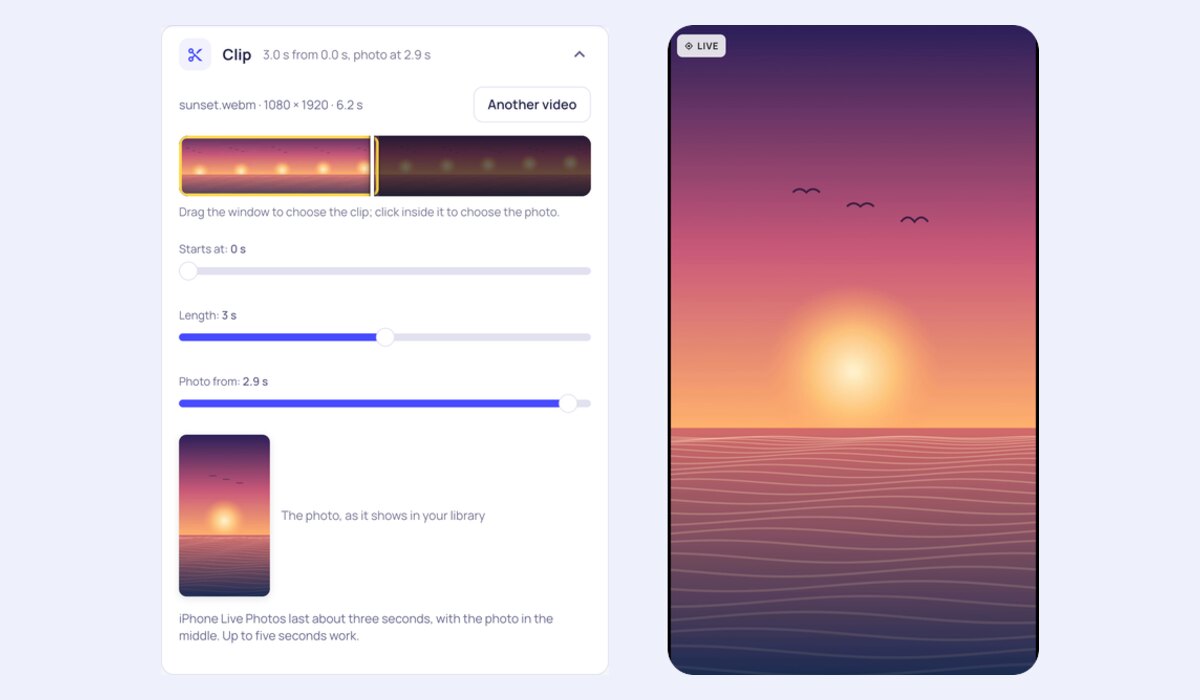
- Choose the moment: drag a window over a strip of frames to pick the clip, up to five seconds, and click to choose the frame that becomes the photo, with a preview of it.
- A sharp photo: the photo is taken from the full-size frame, up to 4032 pixels, while the video is made at up to 1920 pixels, like the camera’s own.
- Any video the browser can play: MP4, MOV (iPhone, including HEVC where the browser supports it) and WebM, in any shape: portrait for a wallpaper, square or landscape.
- Saved your way: straight to Photos from the share sheet on an iPhone, as two files or a zip for a Mac.
How to turn a video into a Live Photo
- Choose a video. It opens on your device.
- Drag the yellow window on the strip of frames to the part you want; three seconds is what an iPhone records.
- Click inside the window, or use the Photo slider, to choose the frame that becomes the photo.
- Press Make Live Photo. A few seconds later you can press and hold the result to see it move.
- On an iPhone, tap Save to Photos; on a computer, download the two files and add them to Photos together.
Make a live wallpaper from a video
Choose a portrait video, ideally 9:16 like your screen, and keep the clip to about three seconds. Save the Live Photo to Photos, then open Settings › Wallpaper › Add New Wallpaper › Photos, choose it and turn on the Live Photo button at the bottom. Live wallpapers came back in iOS 17; on the lock screen the wallpaper plays when you wake the phone.
Frequently asked questions
Is this video to Live Photo converter free?
Yes. There is no sign-up, no watermark and no limit on how many Live Photos you make. The conversion runs on your own device, so it costs nothing to run and your video stays private.
What is a Live Photo made of?
Two files: a photo (JPG or HEIC) and a short video (MOV), usually about three seconds with the photo taken in the middle. They share one content identifier, stored in the photo’s Apple maker note and in the video’s metadata, and the video marks the moment of the photo with a still-image time. That shared identifier is how Photos knows the two belong together.
How do I save the Live Photo to my iPhone?
Open this page in Safari on the iPhone, make the Live Photo and tap Save to Photos, then choose to save both items. If you made it on a computer, download the photo and the video, and either drag both into the Photos app on a Mac, which syncs them through iCloud Photos, or send both to the iPhone together with AirDrop.
Why does my Live Photo show as a photo and a video?
The two files must be added to Photos together, in one go. Added one at a time, or after being renamed or re-saved by another app, they arrive as a separate photo and video. Keep them as they are and add both at once.
How long can a Live Photo be?
The iPhone camera records about three seconds, and that is what works best everywhere, including wallpapers. This tool allows up to five seconds; longer clips are not made into Live Photos by Photos reliably.
Does the Live Photo keep the sound?
No: the Live Photo is made without sound, which suits wallpapers and looping clips. Live wallpapers never play sound anyway.
Which browsers work?
Recent versions of Chrome, Edge and Safari (iOS and macOS 16.4 or later), which can encode H.264 video in the browser. If a browser cannot, the page says so before you start.