Text Tools
 Image Tools
 PDF Tools
 Social Media Tools
 Security Tools
 Coding Tools
 CSS Tools
 Color Tools
 Miscellaneous Tools
 Add to Chrome
 Add to Firefox


Video to frames: extract frames from MP4, MOV or WebM video as JPG, PNG or WebP images, in your browser.
Open a video to see how many frames you will get.
What is Video to Frames?
Video to Frames turns a video into still images. Open an MP4, MOV or WebM file, choose which frames you want, and save them as JPG, PNG or WebP pictures, one by one or all together in a ZIP. You can extract a frame every second, a fixed number of frames spread across the clip, every single frame of a short range as an image sequence, or step through the video frame by frame and capture exactly the moment you need.
The video never leaves your device. It is decoded by your browser, each frame is drawn onto a canvas and saved as an image on your own computer or phone, so nothing is uploaded, there is no file size limit set by a server, no sign-up and no watermark. That also makes it quick: a frame is ready as soon as the browser has decoded it, with no waiting in a queue.
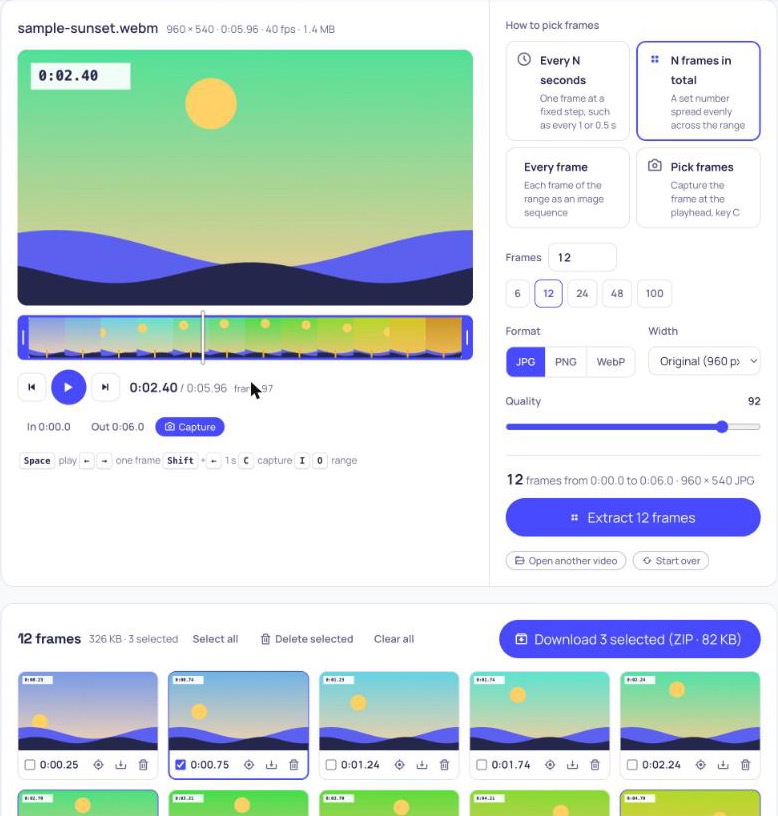
How to extract frames from a video
- Drop a video on the panel or press Choose video. MP4 (H.264), MOV, WebM and most phone and screen recordings work. The first frame appears with a filmstrip of the whole clip under it.
- Drag the two handles at the ends of the filmstrip, or press I and O at the playhead, to set the part of the video to use. Leave them at the ends for the whole video.
- Choose how to pick frames: Every N seconds, N frames in total, Every frame or Pick frames by hand.
- Choose the image format (JPG, PNG or WebP), the width and, for JPG and WebP, the quality. The panel shows how many frames you will get and their pixel size before you start.
- Press Extract frames. The frames appear in the grid as they are made, with a progress bar and a Cancel button. Click any frame to see it large, then download it, delete it, or select several and press Download to save them as a ZIP.
Four ways to pick frames
Every N seconds
The most common way to convert a video to images: one frame at a fixed step, for example every 1 second, every 0.5 seconds or every 10 seconds. A two-minute video at one frame per second gives 121 pictures. This is the right choice for making a dataset for machine learning, for reviewing a long recording at a glance, or for turning a lecture or tutorial into slides.
N frames in total
Ask for 12, 24 or any number of frames and they are spread evenly across the range, each from the middle of its part of the clip, so the first and last are not black fade-ins. This is the quickest way to get a storyboard, thumbnail candidates for YouTube, or a set of stills that covers the whole video whatever its length.
Every frame (video to image sequence)
Extract every frame of a range as a numbered image sequence, for rotoscoping, animation reference, sports and motion analysis, or for bringing a clip into an editor that takes PNG sequences. The frame rate is read from the video while it plays for a moment; if the browser cannot tell, 30 fps is assumed and you can type the right one. Keep the range short: a 30 fps video gives 30 images for every second.
Pick frames by hand
When you need one perfect moment (a sharp face, a goal, the frame before a blink), play the video, pause near it and step one frame at a time with the arrow keys. Press C or Capture to keep that frame. Every captured frame is marked on the filmstrip, so you can see what you already have. You can mix the modes too: extract a frame every two seconds, then add a few hand-picked ones in between.
Video to JPG, PNG or WebP: which format to choose
- JPG is the usual choice when you convert video to JPG for sharing, documents and thumbnails. At quality 90 a 1080p frame is typically 200 to 500 KB and looks the same as the video.
- PNG is lossless: the image is exactly the decoded frame, with no new compression added. Choose video to PNG for editing, image sequences and machine learning, where every pixel should stay as it was. Files are larger, often 2 to 4 MB for a 1080p frame.
- WebP is about a third smaller than JPG at the same quality and is ideal for frames that go on a website.
Whatever the format, a frame can never be sharper than the video it comes from. Frames from a phone video are full-size photos of 1920 × 1080 or 3840 × 2160 pixels, but each one is a single moment of a moving picture, so motion blur shows in fast scenes. For the sharpest still, step through a few frames by hand and pick the one where the subject is still.
MP4 to JPG with timestamps in the file names
Each frame is named after the video and the moment it comes from, such as holiday_00-01-23.450.jpg for 1 minute 23.45 seconds. In a ZIP the frames are also numbered in time order (holiday_0001_00-00-00.500.jpg, holiday_0002_…), so they sort correctly in any folder and import as an image sequence. The time shown under each frame in the grid is the same one, and the target button next to it jumps the player back to that frame.
Contact sheet and sprite sheet
Besides single images and a ZIP, the frames can be saved as one picture. A contact sheet lays them out in a grid with the time under each one and the video name on top, the way film editors review footage; it is handy for sending a client a summary of a shoot or for planning cuts. A sprite sheet places the frames edge to edge with no gaps or labels, the layout CSS step animations and game engines expect. Choose the number of columns, and use the selection to put only the frames you want on the sheet.
Long videos and large files
Because the video is read straight from your disk, a 2 GB file opens as fast as a small one; only the frames you ask for are decoded. Extraction runs in small steps, so the page stays responsive and you can cancel at any time and keep the frames already made. To protect your device's memory, up to 1500 frames are kept at once. For more, extract a part, download the ZIP, clear the grid and go on with the next range.
Which videos open depends on your browser: MP4 with H.264 and WebM play everywhere, MOV from an iPhone plays in Safari and in Chrome on Mac and most Windows PCs, and HEVC (H.265) or some MKV files play only where the system has the codec. If a file does not open, saving it as MP4 first usually solves it.
Frequently asked questions
Is this video to frames converter free?
Yes. It is free with no account, no watermark and no limit on how many videos you convert. It works in Chrome, Edge, Firefox and Safari on computers and phones.
Is my video uploaded anywhere?
No. The video is opened by your browser and the frames are made on your device. You can even disconnect from the internet after the page has loaded and it keeps working.
How do I extract one frame per second from a video?
Choose Every N seconds, set it to 1 and press Extract frames. For one frame every half second, enter 0.5.
How do I get every frame of a video as images?
Choose Every frame, check the frame rate, set the range with the handles and extract. Save as PNG for a lossless image sequence. For long videos, work in ranges of a few seconds.
Can I save a single frame from a video as a picture?
Yes. Pause on the frame, fine-tune it with the left and right arrow keys, press C, then click the frame and press Download. This gives the full-resolution still, sharper than a screenshot of the player.
What resolution are the extracted frames?
The same as the video, for example 1920 × 1080 for a 1080p clip, unless you choose a smaller width. Smaller widths keep the aspect ratio and make lighter files and ZIPs.
Does it work with YouTube links?
No, it works with video files on your device. Download your own video file first, or use a screen recording, then open it here.
Why is the frame rate shown as assumed?
Browsers do not report a video's frame rate directly, so the tool measures it by playing a moment of the clip. Where that is not possible it assumes 30 fps. It matters only for frame stepping and the Every frame mode; type the right value there if you know it.