Text Tools
 Image Tools
 PDF Tools
 Social Media Tools
 Security Tools
 Coding Tools
 CSS Tools
 Color Tools
 Miscellaneous Tools
 Add to Chrome
 Add to Firefox


Turn an iPhone Live Photo into an MP4 video with its sound: trim it, bounce or repeat it, set its shape, and save it. Nothing is uploaded.
Going the other way? Turn a video into a Live Photo or a Motion Photo.
How to bring a Live Photo here
Your iPhone makes the video itself, in two taps in Photos. Choose that video here when you want more than the .MOV it saves:
- In Photos, open the Live Photo and tap ⋯
The More button, at the top right on most iPhones. On iOS 15 or older, tap Share instead.
- Tap Save as Video
A video of the Live Photo, with its sound, appears right after it in Photos.
- For an MP4, a trim or a GIF, choose that video here
Tap Choose a video › Photo Library. It is the newest video. The iPhone saved a .MOV; here it becomes an MP4 that plays anywhere, shorter, reversed or a GIF.
No Save as Video in the menu? The photo’s effect is set to Loop, Bounce or Long Exposure, or Live is switched off for it. Open it, tap the LIVE button at the top left and choose Live.
What is Live Photo to Video?
Live Photo to Video turns an iPhone Live Photo into an ordinary video file: an MP4 with H.264 picture and AAC sound, the kind every phone, computer, chat and social app plays. A Live Photo is a picture with about three seconds of video recorded around it, and that video is what comes out, with its sound. Before it is made you can trim it, play it backwards or there and back, speed it up or slow it down, repeat it and set it in another shape, and you watch the result as you choose. Everything happens in your browser, on your device.
What makes it different
- It takes a Live Photo however you have it: its .MOV on its own, the photo and the .MOV together, a .zip or .livp of the two, a .pvt package, or the video an iPhone saves with Save as Video. It says what it found.
- A video that plays everywhere: a Live Photo’s own .MOV is often HEVC, which Windows, older Android phones and many sites refuse. The MP4 made here is H.264 with AAC sound.
- You see it before you make it: the preview plays the result as it will be, with the trim, the direction, the speed and the shape you chose.
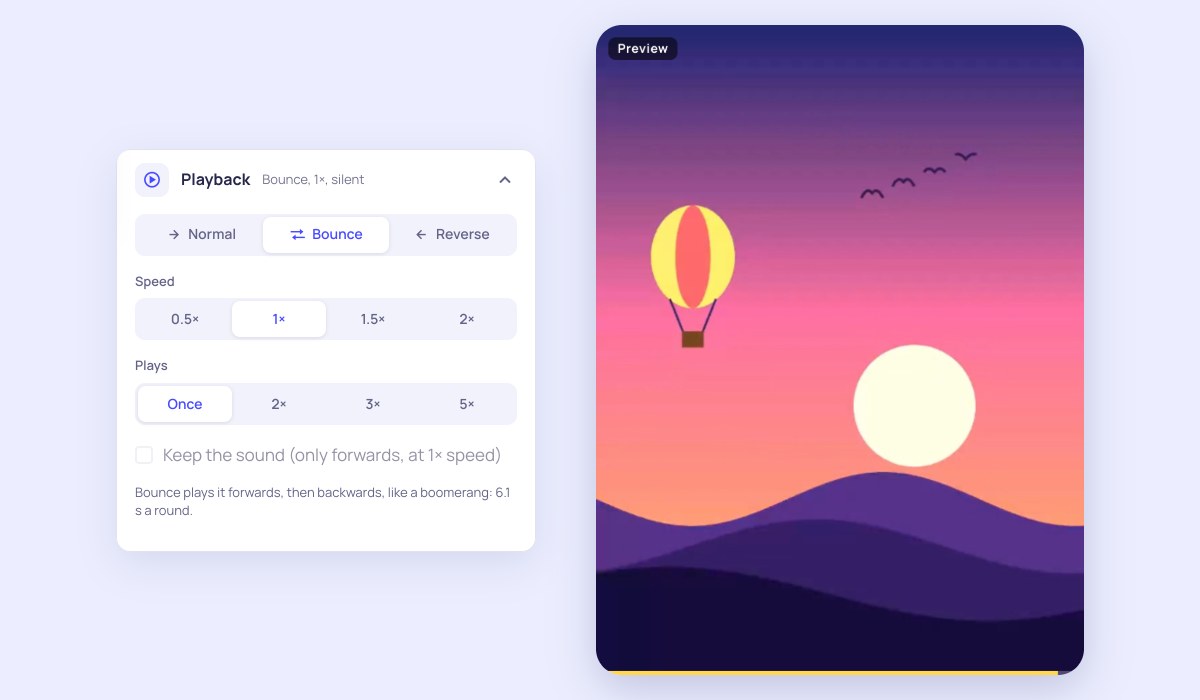
- Bounce, reverse and repeat: play it there and back like a boomerang, backwards, at half or double speed, or two, three or five times over where a clip has to be a few seconds long.
- Any shape: keep its own, or set it in 9:16, 4:5, 1:1 or 16:9, cropped, over a blurred copy of itself or with bars.
- Nothing is uploaded: the video is decoded and encoded on your device, so it stays private and there is no size limit or queue.
How to convert a Live Photo to a video
- On an iPhone: open the Live Photo in Photos, tap the ⋯ button and choose Save as Video. An iPhone hands a website only the still of a Live Photo, so this step comes first.
- Tap Choose a video and pick that video from your library. On a computer: drop the Live Photo’s .MOV, the photo with its .MOV, or a .zip of them, on the page.
- Trim it on the strip of frames if you want less of it.
- Choose how it plays: normal, bounce or reverse, its speed, and how many times.
- Press Make the video, then Save to Photos on an iPhone or Download on a computer.
Frequently asked questions
How do I turn a Live Photo into a video on an iPhone without an app?
Open the Live Photo in the Photos app, tap the ⋯ button (the Share button on iOS 15 and older) and choose Save as Video. A video of the Live Photo, with its sound, is saved next to it. That video is a .MOV: if you need an MP4, a GIF, a boomerang or a different shape, choose it here and make one.
Why can’t I choose the Live Photo itself on my iPhone?
When a website asks for a photo, an iPhone gives it the still picture of a Live Photo and leaves the video out. No website can change that. If you choose a Live Photo here, the page tells you it only received the still and shows the two taps that save it as a video first.
There is no Save as Video in the menu. Why?
Save as Video only shows for a Live Photo whose effect is Live. Open the photo, tap the LIVE button at the top left and choose Live rather than Loop, Bounce, Long Exposure or Off. A photo with Live switched off for it has no video to save until you switch it back on.
Which files of a Live Photo do I need on a computer?
A Live Photo copied to a computer is two files with one name, such as IMG_1234.HEIC and IMG_1234.MOV. The .MOV holds the movement and the sound, so it is enough on its own; the .HEIC on its own is only the picture. From Photos on a Mac, File › Export › Export Unmodified Original gives both. A .zip downloaded from iCloud.com and a .livp file can be dropped here as they are.
Does the video keep the Live Photo’s sound?
Yes, when it plays forwards at normal speed, and you can turn the sound off. A bounced, reversed, slowed or sped-up video is silent, because the sound would play backwards or at the wrong pitch.
How long is the video, and how good is it?
As long as the Live Photo’s clip, usually about three seconds, at the size it was recorded, up to 1920 pixels on its long side, at 30 frames a second. Bounce doubles the length, and Plays repeats it up to five times.
Is it free? Are my photos uploaded?
It is free, with no sign-up, no watermark and no limit. Nothing is uploaded: the page reads the file on your device and makes the video there. To go the other way, from a video to a Live Photo, use Video to Live Photo; for a GIF, use Live Photo to GIF.
Which browsers work?
Recent versions of Safari, Chrome, Edge and Samsung Internet, which can decode and encode video in the browser. If a browser cannot make an MP4, the page says so and still offers a GIF.