Text Tools
 Image Tools
 PDF Tools
 Social Media Tools
 Security Tools
 Coding Tools
 CSS Tools
 Color Tools
 Miscellaneous Tools
 Add to Chrome
 Add to Firefox

Stitch overlapping screenshots into one seamless long screenshot, with every seam found for you, free.
Two or more PNG or JPG screenshots that overlap a little, up to 20. Stitched in your browser, never uploaded.
How it works
- Take overlapping screenshots.Scroll a little less than a screen each time, so each shot repeats a few lines of the last.
- Drop them in, in any order.They are sorted by name or time. The repeated lines are found and matched pixel by pixel.
- Bars appear only once.The status bar, app bar and the typing field that show on every shot are kept at the top and bottom only.
- Check the seams, then save.Drag a seam or nudge it by a pixel, then download PNG, JPG, WebP or a paged PDF.
What is Screenshot Stitcher?
Screenshot Stitcher turns several screenshots of the same chat, web page or app screen into one long screenshot. Take a few shots while you scroll, drop them here, and the tool finds where each one repeats the end of the previous one, cuts the repeated part out and joins the rest into a single seamless image. It is the scrolling screenshot your phone or browser did not make for you, built from the screenshots you already have.
It also knows about the parts of a screen that do not scroll. A chat app shows the status bar, the contact's name and the typing field on every screenshot; a web page often has a sticky menu. These fixed bars are found because they are identical on every image, and they are kept once, at the top and the bottom of the long screenshot, instead of appearing again at every join. Everything runs in your browser: your screenshots are never uploaded, there is no watermark, no sign-up and no app to install.
How to merge screenshots into one long screenshot
- Take your screenshots while scrolling, each time scrolling a little less than one screen, so every new shot still shows a few lines of the previous one.
- Drop all of them on the panel, or press Choose screenshots. Up to 20 PNG, JPG or WebP images work at once. They are put in order by the time they were taken or their numbered file names.
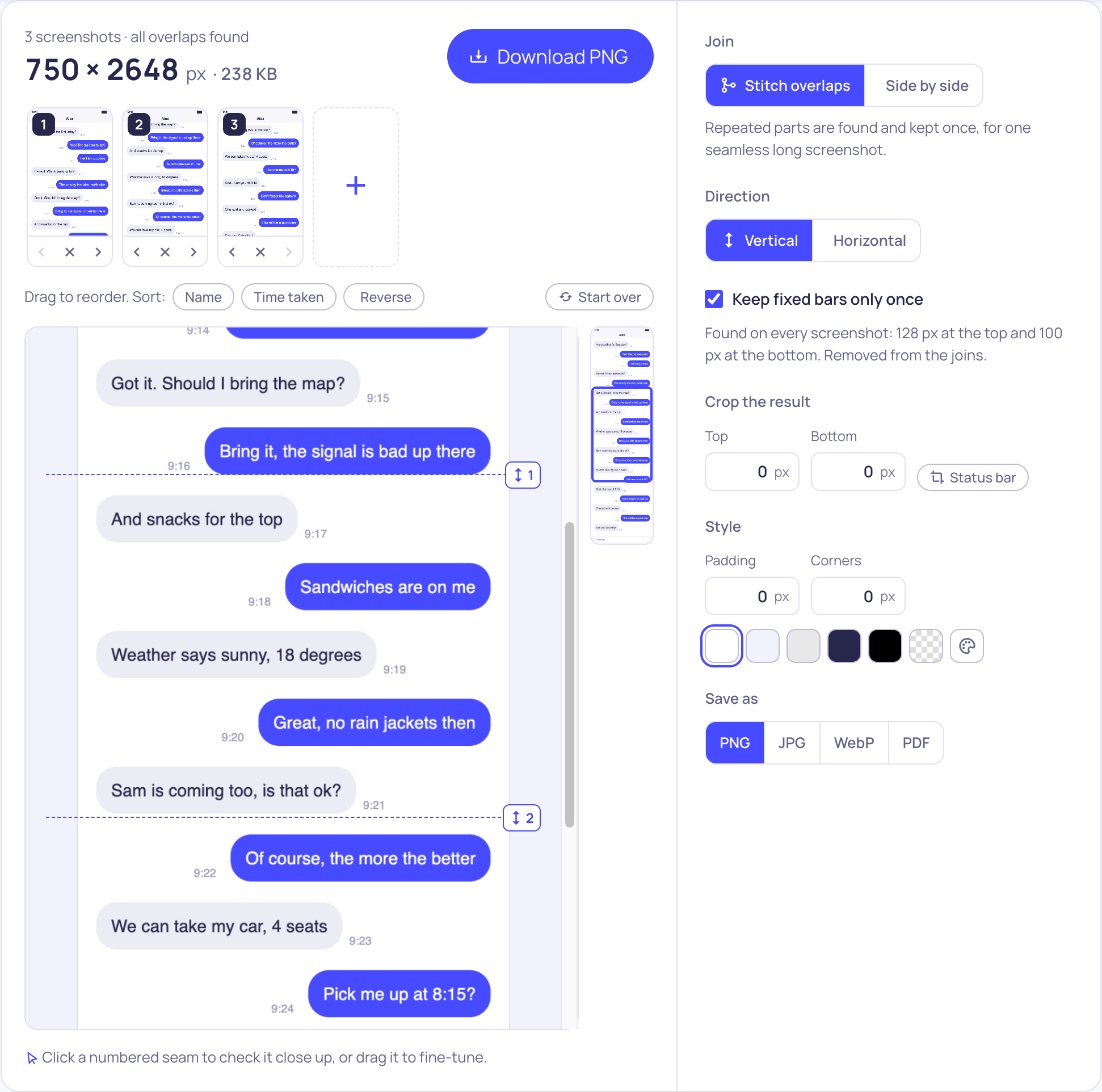
- The tool finds the overlap of every pair. The preview shows the long screenshot with a numbered marker at each seam; a warning marker means no overlap was found there.
- Click a seam to see it close up in the loupe. If a line of text is cut or repeated, drag the seam or press −1 and +1 to move it by one pixel.
- Choose PNG, JPG, WebP or PDF and press Download. The size of the file is shown before you save it.
How the overlap is found
Every screenshot is read line by line. For each row of pixels the tool keeps a short fingerprint: the brightness along the row in 32 parts, how much detail the row has, and an exact hash of its pixels. Then, for each pair of neighbours, it takes a few of the most detailed rows near the top of the lower screenshot (a line of text, an edge of a photo) and looks for them in the upper one. Each place they turn up is a possible scroll distance, and each one is checked over the whole overlap, row by row. The distance where the rows agree best wins; when two agree equally, the longer overlap is chosen.
With screenshots saved as PNG, which is what iPhone, Android and desktop computers save by default, the matching rows are identical to the pixel, so the long screenshot is exactly what the screen would have shown if it were tall enough. JPG screenshots carry small compression differences; the comparison allows for them. The seam is then cut in the middle of the overlap, at its quietest row, such as the white space between two chat bubbles, where any one pixel difference would show least.
Fixed headers, footers and the status bar
Before matching, the tool compares all screenshots from the top and from the bottom. Rows that are the same at the same place in every image are a fixed bar: the clock and battery, the app's title, a tab bar or the message field. With Keep fixed bars only once on, those rows are left out of every join, so the first screenshot keeps its header, the last keeps its footer, and nothing repeats in the middle. If you do not want the status bar in the result at all, use Crop the result and press Status bar, or type how many pixels to cut from the top and the bottom.
Fine-tuning a seam by hand
Automatic matching gets almost every seam right, but a screen of repeating content, such as a list of identical rows, a blank page or a video that played while you scrolled, can confuse any matcher. Each seam has its own controls: drag its marker in the preview, use −10, −1, +1 and +10, the arrow keys, or type the overlap in pixels. The seam loupe shows the rows just above and below the cut at 1×, 2× or 4×, so you can see a broken letter or a doubled line clearly before you save. Auto puts the seam back where it was found.
How to take a scrolling screenshot on iPhone, Android and Chrome
Many people search for a long screenshot maker because the built-in scrolling screenshot does not work where they need it. Here is what each device offers, and when stitching is the better way.
iPhone and iPad
On iPhone, press the side button and volume up, tap the thumbnail, and choose Full Page at the top. This works only in Safari and a few other apps, and it saves the page as a PDF, not as a picture. In Messages, WhatsApp, Instagram and most other apps there is no Full Page option, so the way to a long screenshot of a chat on iPhone is to take several screenshots while scrolling and stitch them here. Keep a few lines of overlap between them; the status bar and the chat header are taken care of.
Android
Most Android phones have a scrolling screenshot: take a screenshot with power and volume down, then tap Capture more (Pixel and stock Android), Scroll capture (Samsung) or Scrollshot (Xiaomi, OnePlus). It works in many apps but stops early in some, refuses others, and cannot go back to add more. When it fails, take ordinary screenshots while scrolling and merge them with this tool.
Chrome, Edge and Firefox on a computer
In Chrome, open DevTools (F12), press Ctrl+Shift+P (Cmd+Shift+P on a Mac), type screenshot and choose Capture full size screenshot. Firefox has Take Screenshot › Save full page in its right-click menu, and Edge has Web capture with Ctrl+Shift+S. These capture the whole page at once, but pages with lazy-loaded images, sticky headers that cover content, infinite scroll or content inside a scrolling panel often come out broken. Screenshots of the visible part, stitched here, give you exactly what you saw.
Combine screenshots side by side
Not every set of screenshots overlaps. To show a before and after, the steps of a setup guide or several app screens together, switch Join to Side by side. Each screenshot is then kept whole, placed one under another or, with Horizontal, next to each other, with a gap, padding, rounded corners and a background colour of your choice. The same direction switch works for stitching: Horizontal merges screenshots of a wide table, timeline or spreadsheet scrolled sideways.
Saving the long screenshot
- PNG keeps every pixel exactly, best for text and chats. Long chats are often 1 to 5 MB.
- JPG and WebP are much smaller, with a quality slider, best for sending in a chat or by email.
- PDF cuts the long screenshot into A4 or Letter pages at full width, ready to print, or keeps it as one long page. Useful as evidence of a conversation or for keeping receipts and bookings.
Browsers cannot hold a picture longer than about 32,000 pixels. When a very long stitch passes that, the image is saved slightly smaller and a note says so; PDF keeps each page sharp in that case.
Tips for a perfect stitch
- Overlap by about a quarter of the screen. More overlap is fine; no overlap means the seam cannot be found.
- Do not zoom or rotate between shots, and wait for the page to stop moving before each one.
- Videos, GIFs and live counters change between shots; scroll past them or check those seams in the loupe.
- Send PNG screenshots rather than ones that were recompressed by a messaging app, for an exact match.
Frequently asked questions
Are my screenshots uploaded?
No. Decoding, matching and saving all happen in your browser on your own device. Private chats and bank pages stay with you, and the page keeps working offline once it is open.
How many screenshots can I stitch together?
Up to 20 at once. A typical phone chat of 10 screenshots becomes an image about 15,000 pixels tall, which every browser can save at full size.
The seam is in the wrong place. What can I do?
Click the seam's number, then drag it or use −1 and +1 while watching the loupe until the text above and below the line continues naturally. If the screenshots are in the wrong order, drag the thumbnails or use Sort, and every seam is matched again.
Can I make a long screenshot of a WhatsApp or iMessage chat?
Yes, that is what this tool is made for. Scroll the chat a little less than a screen at a time, take screenshots, and drop them here. The chat header and the message field are kept once.
Do the screenshots need to be the same size?
For stitching, they should come from the same screen. If one has a different width, it is scaled to the most common width first, which is fine for combining side by side but may make an exact overlap impossible.