Text Tools
 Image Tools
 PDF Tools
 Social Media Tools
 Security Tools
 Coding Tools
 CSS Tools
 Color Tools
 Miscellaneous Tools
 Add to Chrome
 Add to Firefox


Open a HAR file: a waterfall of every request, what went wrong in plain words, and any request as cURL.
How to save a HAR file
- Open the page, then press F12 (Cmd+Option+I on a Mac) and choose the Network tab.
- Tick “Preserve log” and reload the page; do what causes the problem.
- Click the download arrow (Export HAR) above the list, or right-click a request and choose “Save all as HAR with content”.
A HAR file records everything the page sent and received, cookies and passwords included. Sanitize it before you send it to anyone.
What is HAR Viewer?
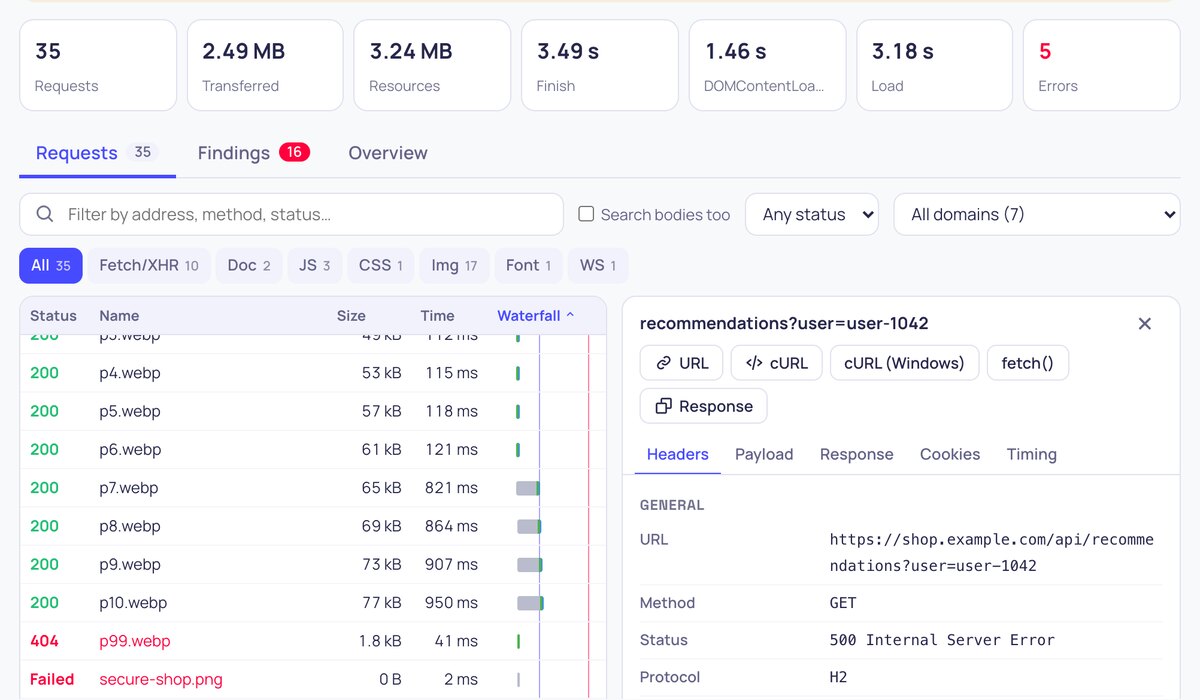
HAR Viewer opens a HAR file (HTTP Archive), the recording of a page’s network traffic that browsers save from their developer tools, and lays it out like a network panel: every request in a waterfall, with its headers, payload, response and timings. It also reads the file for you and lists what went wrong: failed requests, CORS errors, server errors, slow responses, uncompressed files and more. The file is read in your browser and never uploaded, which matters, because HAR files hold cookies and tokens.
What it does
- Findings in plain words: CORS failures, requests with no response, 5xx and 4xx errors, refused requests, slow server responses (time to first byte), slow downloads, queued requests, uncompressed text, large images, files without caching, redirects, duplicate requests, mixed content, HTTP/1.1 and third-party domains, each with the requests behind it.
- A real waterfall: queueing, DNS, connecting, TLS, sending, waiting and downloading in colour, with the DOMContentLoaded and Load lines.
- Every detail of a request: general facts, request and response headers, query string, request body, the response as a JSON tree, an image or text, cookies, a timing breakdown and WebSocket messages.
- Copy as cURL (Bash or Windows) or as fetch(), to replay a request in a terminal or the console.
- Filters by text (in addresses or bodies too), type, status and domain, sorting by any column, and arrow keys to move through requests.
- Fast with big files: only the rows in view are drawn, so thousands of requests scroll smoothly.
- Secrets flagged: requests carrying cookies, tokens or keys are marked, and one click takes the file to the HAR Sanitizer.
- Export the requests shown as a smaller HAR file or as CSV for a spreadsheet.
- Any browser: HAR files from Chrome, Edge, Firefox, Safari, Charles, Fiddler and other tools.
How to use HAR Viewer
- Save a HAR file from your browser’s developer tools (Network tab, then Export HAR), or press “Try a sample”.
- Drop the file on the page. Nothing is uploaded.
- Read the Findings tab for the problems, and press “Show the requests” to see them.
- Click any request for its headers, payload, response and timings, and copy it as cURL if you need to replay it.
- Before sending the file to anyone, sanitize it in the HAR Sanitizer.
Frequently asked questions
What is a HAR file?
HAR stands for HTTP Archive. It is a JSON file in which a browser records every request a page made: the address, method, headers, cookies, the data sent, the response and how long each step took. Support teams ask for one because it shows exactly what happened on your side.
Is it safe to open my HAR file here?
Yes. The file is read by your own browser with JavaScript and is never sent to a server; you can even disconnect from the internet after the page has loaded. Remember that a HAR file can contain passwords, cookies and tokens, so be careful where else you upload it.
How do I find why a page is slow?
Open the Findings tab. Long “Waiting (TTFB)” times point to the server; long downloads point to large files or a slow connection; queued requests point to too many requests at once over HTTP/1.1. The Overview tab lists the slowest and the largest requests, and the waterfall shows which requests held up the Load event.
What does a CORS error look like in a HAR file?
A request blocked by CORS has no status (0) and an error such as net::ERR_FAILED, often after a failed OPTIONS preflight. The viewer lists these on their own, because the fix is on the server: its Access-Control-Allow-Origin header must allow your page’s origin.
Why are the response bodies empty?
Browsers can save HAR files with or without content. In Chrome, choose “Export HAR (with content)” or “Save all as HAR with content” to include the responses; newer versions can also leave out sensitive data when saving.
Can I replay a request from the HAR file?
Yes. Select it and press cURL to copy a command for a terminal (a Windows version is there too), or fetch() to paste in a browser console. The command includes the method, headers and body, so treat it like the file: it may contain your session.