 Text Tools
 Image Tools
 PDF Tools
 Social Media Tools
 Security Tools
 Coding Tools
 CSS Tools
 Color Tools
 Miscellaneous Tools
 Add to Chrome
 Add to Firefox
Three split modes — pick pages, split by range, or split every N pages — with multi-file results in one ZIP.
Drag your file here, or click to browse
Upload a PDF to split
No PDF uploaded yet
Upload a PDF file to extract specific pages, split it by ranges, or break it into individual pages — all in your browser, no uploads.
100% private — files never leave your browser
Extract specific pages from your PDF
Split into ranges or individual pages
What is Online PDF Splitter?
Sometimes you only need a couple of pages from a long PDF. Maybe you want to extract pages from a PDF contract to share with someone, or you need to remove pages from a PDF scan that came out with blank sheets, or you have a 200-page report that you want to break into smaller chapters. Whatever the case, you should not have to upload your file to a stranger's server just to chop it up.
This free online PDF splitter handles all three of those scenarios in your browser. Pick the pages you want, define page ranges, or tell it to split every N pages — it will spit out the result without your file ever touching a server. It is a client side PDF splitter, which means everything happens locally on your machine.
Most online PDF tools push your documents to a remote server, run their code there, and send you back a download. That works, but it means your file is sitting on someone else's hardware for an unknown amount of time. We do not do that. You can split a PDF without uploading it anywhere — once the page is loaded, you can even disconnect from the internet and the tool will still work.
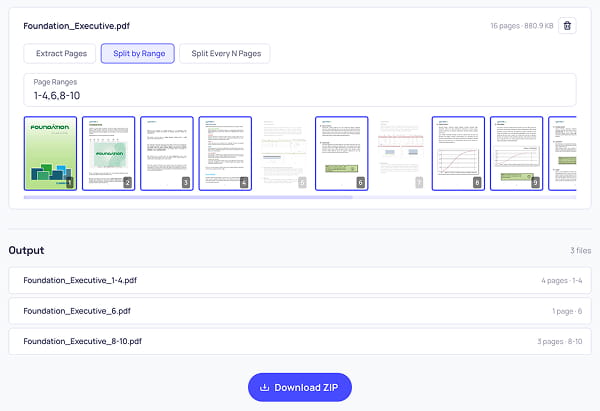
Splitting a PDF file into multiple documents with the PDF Splitter tool
Three ways to split a PDF
The tool supports three different split modes, each suited to a different use case:
- Extract Pages — Click on individual page thumbnails to pick exactly which pages you want. Use this mode when you need to extract specific pages from a PDF, or when you want to delete pages from a PDF by deselecting them. The output is a single PDF containing only the pages you kept.
- Split by Range — Type page ranges like
1-3, 5, 7-10to split a PDF by range. Each range becomes its own PDF file, and you get all of them in a single ZIP. Perfect when you need to split a PDF into multiple files for sharing different sections with different people. - Split Every N Pages — Enter a number to chunk the document into evenly sized files. Set it to 1 to split a PDF into individual pages (one PDF per page), or set it to something like 10 to break a long report into manageable chunks.
How to use Online PDF Splitter?
Splitting a PDF takes about 20 seconds:
- Upload your PDF by dropping it into the upload area or clicking to browse.
- Wait a moment for the page thumbnails to render. You will see the file name, page count, and a preview of every page.
- Pick a split mode at the top: Extract Pages, Split by Range, or Split Every N Pages.
- Configure the mode — click thumbnails to select pages, type a range, or enter a chunk size. The output preview at the bottom updates in real time so you always know what you are about to download.
- Hit the download button. Extract mode gives you a single PDF; the other modes give you a ZIP containing all the split files.
Common use cases
- Extract pages from PDF — Pull out only the pages you actually need from a long document. No need to print and rescan.
- Remove pages from PDF / delete pages from PDF — Use Extract mode and deselect the pages you want to drop. The result is your original document minus those pages.
- Split PDF into individual pages — Set Every N Pages to 1 and every page in the document becomes its own standalone PDF inside the ZIP.
- Split PDF by pages or split PDF by range — Use Range mode to carve out arbitrary page groups, like splitting a book into chapters.
- PDF page extractor online — A drop-in replacement for desktop PDF editors when you just need to grab a few pages.
- Break a large PDF into smaller files — Use Every N Pages mode to chunk a huge document into smaller pieces that fit email attachment limits.
Splitting only decides which pages you keep. If you need to change what is on them — add text, sign the document, fill in a form or rotate a sideways scan — the PDF Editor handles that, and it can delete and reorder pages too.
Features
- 100% client-side PDF splitter — Built on pdf-lib and pdfjs, everything runs in your browser.
- Split PDF without uploading — Files never touch a server. No accounts, no waiting for uploads.
- Three split modes — Extract specific pages, split by custom ranges, or split every N pages.
- Visual page previews — See thumbnails of every page before you split. No guesswork.
- Live output preview — The list of files you are about to download updates as you change settings.
- Multi-file ZIP delivery — When you split into multiple files, they come packaged in a single ZIP for convenience.
- Works offline — Once the page has loaded, you can disconnect from the internet and the tool still works.
Frequently asked questions
What are the three split modes?
Extract Pages keeps the pages you click and gives one PDF back. Split by Range takes something like 1-3, 5, 7-10 and makes a separate file per range. Split Every N Pages chunks the document evenly — set it to 1 and every page becomes its own file.
How do I delete pages rather than extract them?
Use Extract mode and deselect the pages you want gone. What you download is the original minus those pages, which is the same job approached from the other end.
How do multi-file results come back?
As a single ZIP. Range and Every-N modes can produce dozens of files, so they are packaged together rather than firing off a download each.
Is there a page or size limit?
None imposed by us. Your own machine's memory is the ceiling, and since nothing is uploaded there is no queue and no daily allowance to run out of.
Does splitting lose any quality?
No. The pages are copied over untouched — no re-rendering, no recompression. A page out of a split file is byte-for-byte the page that went in.
Can I change the pages I keep?
Splitting only chooses pages. The PDF Editor is what you want for adding text, signing or rotating them, the PDF Merger puts files back together afterwards, and the Bionic Reading Converter will reformat a chapter you have split out for faster reading.
Similar PDF Tools
See All