 Text Tools
 Image Tools
 PDF Tools
 Social Media Tools
 Security Tools
 Coding Tools
 CSS Tools
 Color Tools
 Miscellaneous Tools
 Add to Chrome
 Add to Firefox
Finds the AcroForm fields in a PDF and overlays a real input on each, text through to radio groups.
No limits, no signup — the file is opened by your browser, not uploaded
Open a PDF and its form fields are detected automatically — type into them, then keep the form fillable or lock the answers in before saving.
What is Online Fill PDF Form?
A fillable PDF is not a picture of a form — it is a form. Underneath the page there is a structure called an AcroForm, listing every field, where it sits, what type it is and what it is called. Adobe Reader knows how to show you those fields. A browser, on its own, mostly does not, which is why so many people end up printing a form, filling it in by hand and scanning it back.
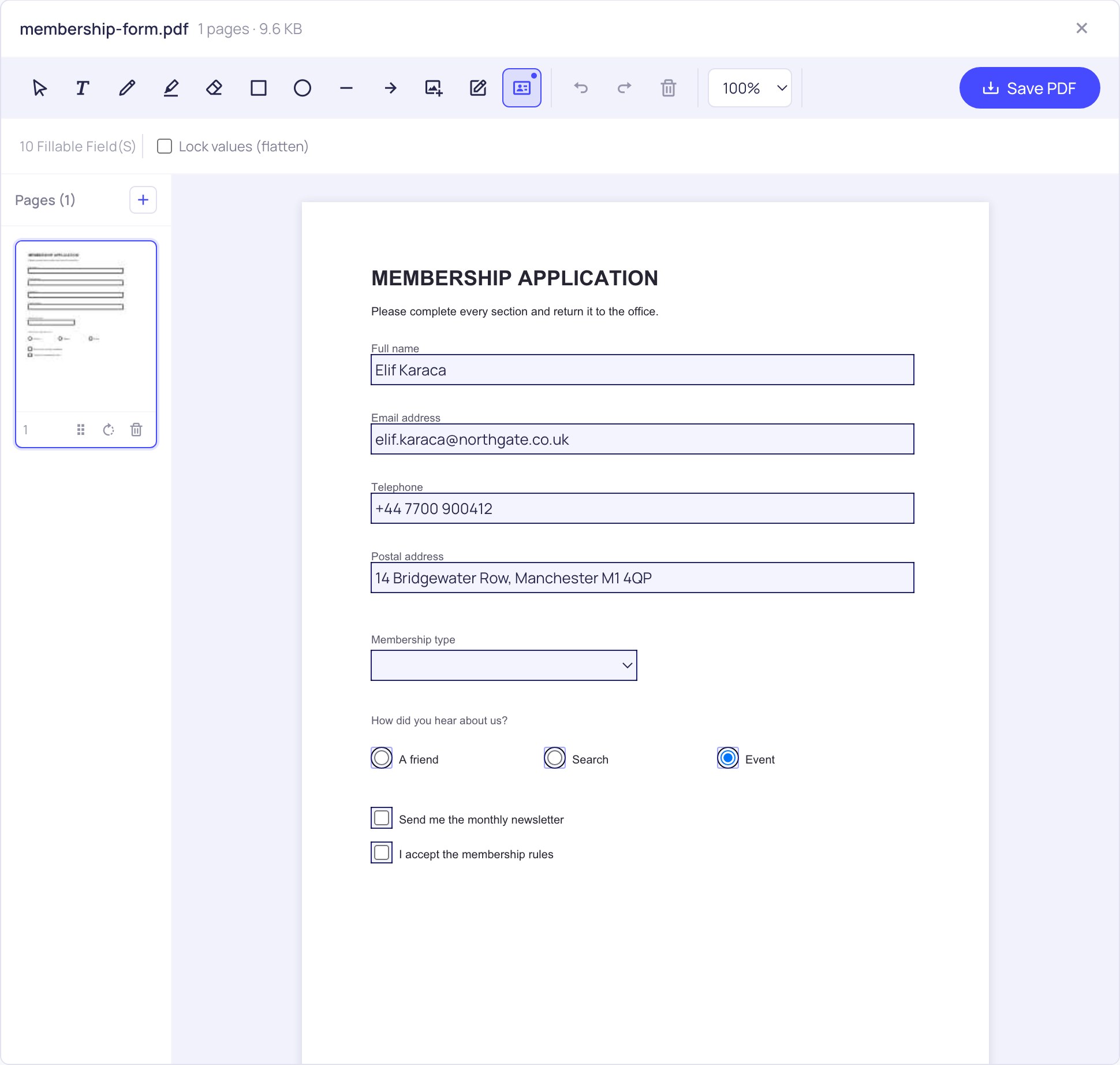
This tool reads that structure and puts a proper input on top of each field it finds: a text box where the form expects text, a tick box where it expects a tick, a dropdown where it offers a list. You type the answers, and they are written back into the form itself when you save.
Which field types are supported
- Text fields — names, addresses, dates, reference numbers, free-text boxes.
- Check boxes — tick and untick individually.
- Radio buttons — grouped options where only one choice can be active, handled as a group the way the form intends.
- Dropdowns — the list of options defined in the PDF, so you cannot accidentally enter a value the form will reject.
- List boxes — the scrolling variant of the same thing.
Each input is positioned from the field rectangle stored in the file, so the answers land exactly where the form's author put them — not approximately where you guessed. That is the difference between filling a form and typing on top of a picture of one.
Keep it fillable, or lock the answers in
When you save, you choose what the recipient gets. Leave it as it is and the form stays a form: your answers are stored in the fields, and anyone opening the file can correct a typo or complete the parts you left blank. That is what you want for a document still moving between people — a purchase order collecting approvals, an application passing through two departments.
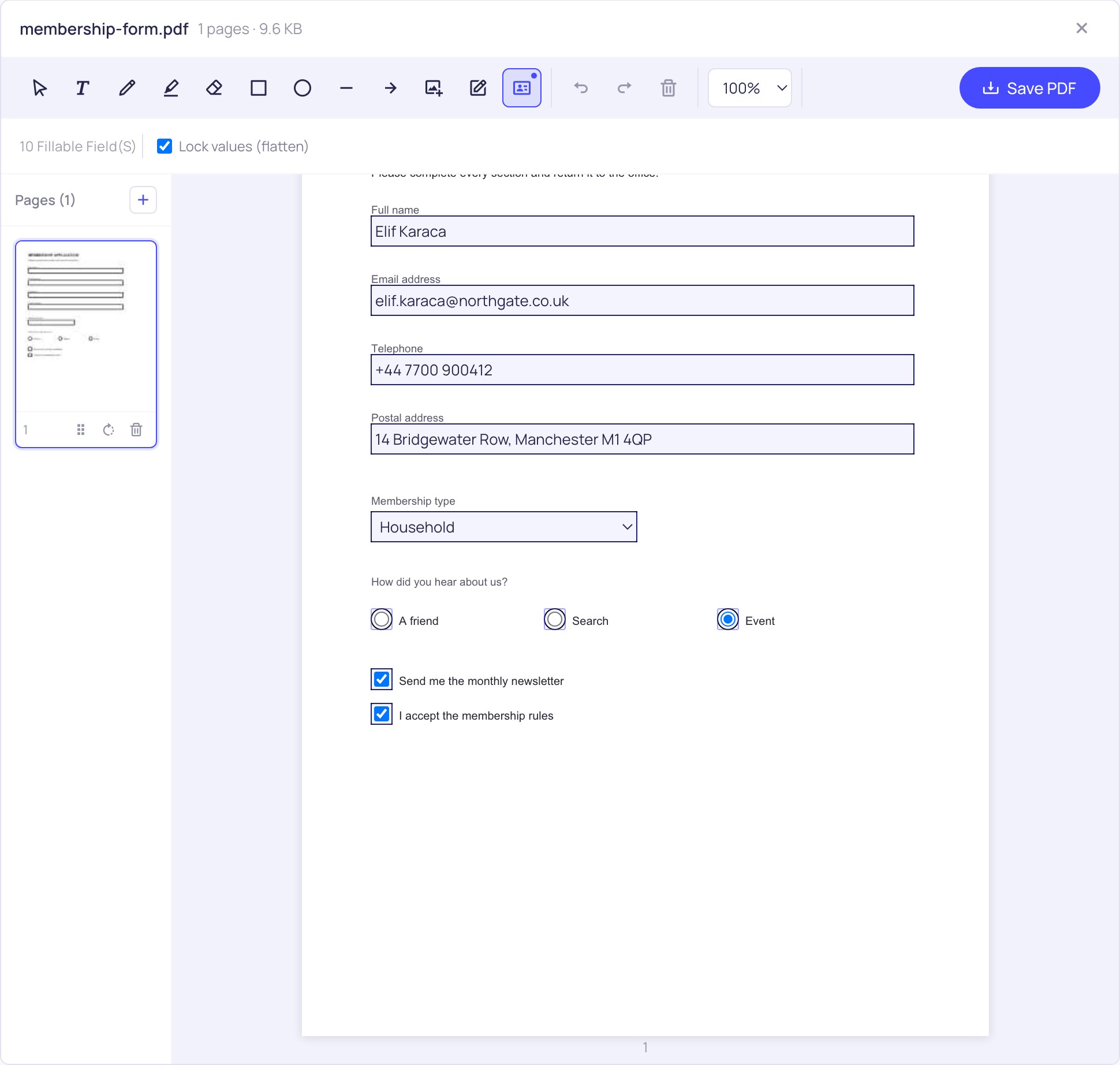
Tick Lock values (flatten) and the answers become part of the page instead. There are no fields left in the file, nothing can be edited, and the document looks identical in every reader — including the ones that render empty fields badly. This is the right choice for a finished form you are emailing back, and it is also what makes the result safe to print.
When a PDF has no fields at all
Plenty of forms are not fillable. A scan of a paper form is a photograph — there is nothing in the file to fill. So is many a form exported from a word processor by someone who never added fields. When that is the case the tool says so rather than pretending, and points you at the text tool.
That path works fine: type your answers directly onto the page, positioned by eye, in whatever size matches the printed labels. Tick boxes can be ticked with a short pen stroke or an "X". It is a little slower than a real form, but the result is the same document, properly completed.
Frequently asked questions
Is my form uploaded to a server?
No. The PDF is read and written entirely by your browser. That is worth something here, because forms are exactly the documents that carry addresses, ID numbers, salaries and bank details.
The tool says there are no fillable fields. Why?
Because the file has no AcroForm in it. Usually it is a scan, or it was exported without form fields. Nothing is wrong with your file — it simply is not a fillable PDF, and you can type your answers onto the page instead.
What exactly does "Lock values (flatten)" do?
It draws the answers permanently onto the page and removes the form fields. Afterwards nobody can change an answer, including you, so save an unflattened copy first if you might need to revise it.
Will accented and non-English characters go through?
Yes. Form fields are a notorious place for this to break — the default PDF font covers Latin-1 only, so characters like ğ, ş, ł or anything Greek or Cyrillic fail. When the form's own font cannot encode what you typed, an embedded font that covers it is used instead, so the value is written properly rather than mangled or dropped.
Can I sign the form as well?
Yes. Fill the fields, then add your signature without leaving the page, and save once at the end.
Is there a limit on how many forms I can fill?
No. There is no daily count, no account and no watermark. Since the work happens on your machine, there is nothing for us to ration.