 Text Tools
 Image Tools
 PDF Tools
 Social Media Tools
 Security Tools
 Coding Tools
 CSS Tools
 Color Tools
 Miscellaneous Tools
 Add to Chrome
 Add to Firefox

Ghostscript with 3 presets, cutting a scan by 60-85% at the top setting; files up to 50 MB.
Drag your file here, or click to browse
Upload a PDF to compress (max 50 MB)
No PDF uploaded yet
Upload a PDF file to reduce its size. Choose from three compression presets — the tool uses Ghostscript for professional-grade compression.
Files are processed securely and deleted immediately
Three quality presets: Low, Medium, High
No signup required
Found it useful? or .
What is Online PDF Compressor?
Your PDF is 25 MB and the email attachment limit is 10. The form only accepts files under 5 MB. The upload keeps timing out because the file is too large. Sound familiar? These are the moments where you need to compress a PDF quickly without jumping through hoops.
This free online PDF compressor lets you reduce PDF file size with a single click. Pick how hard you want to squeeze, and get a smaller file back in a few seconds. No signup, no watermark, no trial.
Compression is especially effective on scanned PDFs, image-heavy documents and large presentations, where nearly all of the file size comes from embedded images. A text-only document is usually already about as small as it can get — the tool will tell you when that is the case rather than handing you a bigger file.
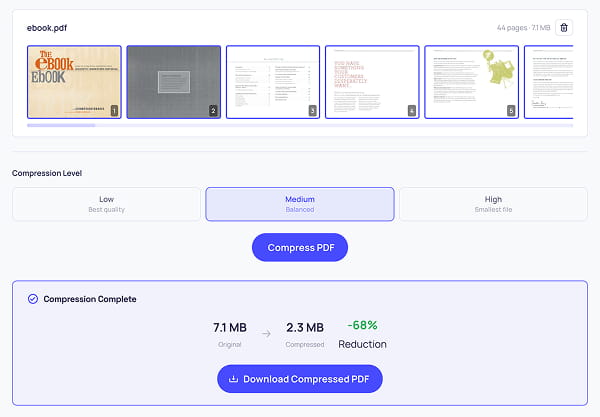
Reducing the file size of a PDF with the PDF Compressor tool
How does it work?
Your file is sent to our server and run through Ghostscript, the same engine most professional PDF pipelines use. It downsamples embedded images to a sensible resolution for the preset you picked, re-encodes them, subsets the fonts and strips redundant structure — then returns the rebuilt file. Doing this server-side is what makes the quality-per-kilobyte as good as it is; the equivalent in a browser has to re-render each page as a picture, which is cruder and loses the text layer.
To be plain about the trade-off that involves: unlike our PDF Editor, PDF Merger and PDF Splitter, which never send your document anywhere, this tool does upload it. The file is processed and then deleted from the server immediately — both the upload and the result are removed as soon as the response is sent. Nothing is archived, indexed or kept. If you would rather nothing left your machine at all, use one of the browser-only tools instead.
How to use Online PDF Compressor?
Compressing a PDF takes about 10 seconds for a typical document:
- Upload your PDF by dropping it into the upload area or clicking to browse. Files up to 50 MB are accepted.
- Choose a compression preset — Low (best quality), Medium (balanced) or High (smallest file).
- Click "Compress PDF" and wait a few seconds while the file is processed.
- You will see the original and compressed sizes side by side with the percentage reduction.
- Hit "Download Compressed PDF" to save the result to your device.
Compression presets
- Low compression — Images kept at print resolution. Best when the document has to look as close to the original as possible. Typical reduction: 20-40%.
- Medium compression — Images downsampled for screen reading. Fine for emailing or uploading, and the default for most use. Typical reduction: 40-65%.
- High compression — The smallest file. Some quality loss is visible on close inspection, but the document stays perfectly readable. Typical reduction: 60-85%.
Common use cases
- Reduce PDF file size for email — Most email providers cap attachments at 10-25 MB. Compress your PDF to fit within the limit without splitting it into multiple files.
- Compress scanned PDF documents — Scanned pages are essentially high-resolution images and tend to be huge. This tool is particularly effective at shrinking them.
- Make PDF smaller for web upload — Many forms, portals and CMS platforms impose file size limits. Shrink your PDF to meet the requirement.
- Reduce PDF size for storage — Archive large collections of PDF documents without eating up disk space.
- Compress PDF without losing quality — Use the Low preset to shrink PDF files with minimal visible quality loss.
Features
- Ghostscript-grade compression — The same engine used by professional PDF tooling, not a browser re-render that flattens your pages into pictures.
- Three compression presets — Low, Medium and High, so you decide where quality stops and savings start.
- Before/after comparison — See the original and compressed sizes side by side with the percentage reduction.
- Honest about already-optimized files — If compression would make the file bigger, the tool says so instead of handing you a worse PDF.
- Files deleted immediately — Your upload and the result are removed from the server as soon as it responds.
- Up to 50 MB per file — With no daily limit on how many documents you compress.
- No signup required — Upload, compress, download. Nothing else.
Frequently asked questions
How much smaller will my file get?
It depends almost entirely on what is in it. Scans and image-heavy documents routinely drop 60-85% on the High preset. A text-only PDF is already close to as small as it can be, and the tool tells you so rather than handing back something bigger.
Which preset should I pick?
Low keeps images at print resolution and typically saves 20-40%. Medium downsamples for screen reading and saves 40-65%, which suits almost everything that is going to be emailed. High goes to 60-85% with quality loss you can see if you look for it.
Is this one uploaded, unlike your other PDF tools?
Yes, and we would rather say so plainly. Compression runs through Ghostscript on a server because the quality per kilobyte is far better than anything a browser can manage. Both your upload and the result are deleted the moment the response is sent.
What is the file size limit?
Up to 50 MB per file, with no limit on how many you compress. The cap exists because this tool does the work on a server, unlike the rest of the set.
Why has compression made my file bigger?
Because it was already optimised, so re-encoding added overhead without finding anything to save. The tool checks for this and tells you instead of giving you the worse file.
Is there a way to shrink a PDF without uploading it?
Not with this quality, no. But if the goal is a smaller file to send, splitting it can be enough — the PDF Splitter will break a long document into parts that each fit an attachment limit.
Similar PDF Tools
See All