 Text Tools
 Image Tools
 PDF Tools
 Social Media Tools
 Security Tools
 Coding Tools
 CSS Tools
 Color Tools
 Miscellaneous Tools
 Add to Chrome
 Add to Firefox
Annotate, sign, fill and reorganise a PDF with no page cap and no daily count, in the browser.
No PDF open
Drag your file here, or click to browse
No limits, no signup — the file is opened by your browser, not uploaded
Open a PDF and every tool above becomes available: write on it, highlight, white out, sign it, fill in its form and reorder the pages. Hover a button to see what it does.
What is Online PDF Editor?
Most free PDF editors are not really free. One gives you two tasks a day. Another caps you at fifty pages. A third stamps a watermark across the result, or asks for an account before it will hand the file back. And every one of them wants your document uploaded to their servers first.
This free online PDF editor runs entirely inside your browser. Open a PDF, write on it, highlight a paragraph, white out a mistake, drop in an image or a signature, fill in a form, move the pages around — then save a real PDF straight back to your machine. There is no task counter, no file size tier, no account and no watermark.
Because nothing is uploaded, there is also nothing to delete afterwards. Your document is never written to a server, never queued for processing and never stored anywhere we control. That is not a privacy policy you have to take on trust — it is simply how the tool is built. Once the page has loaded you can disconnect from the internet entirely and keep working.
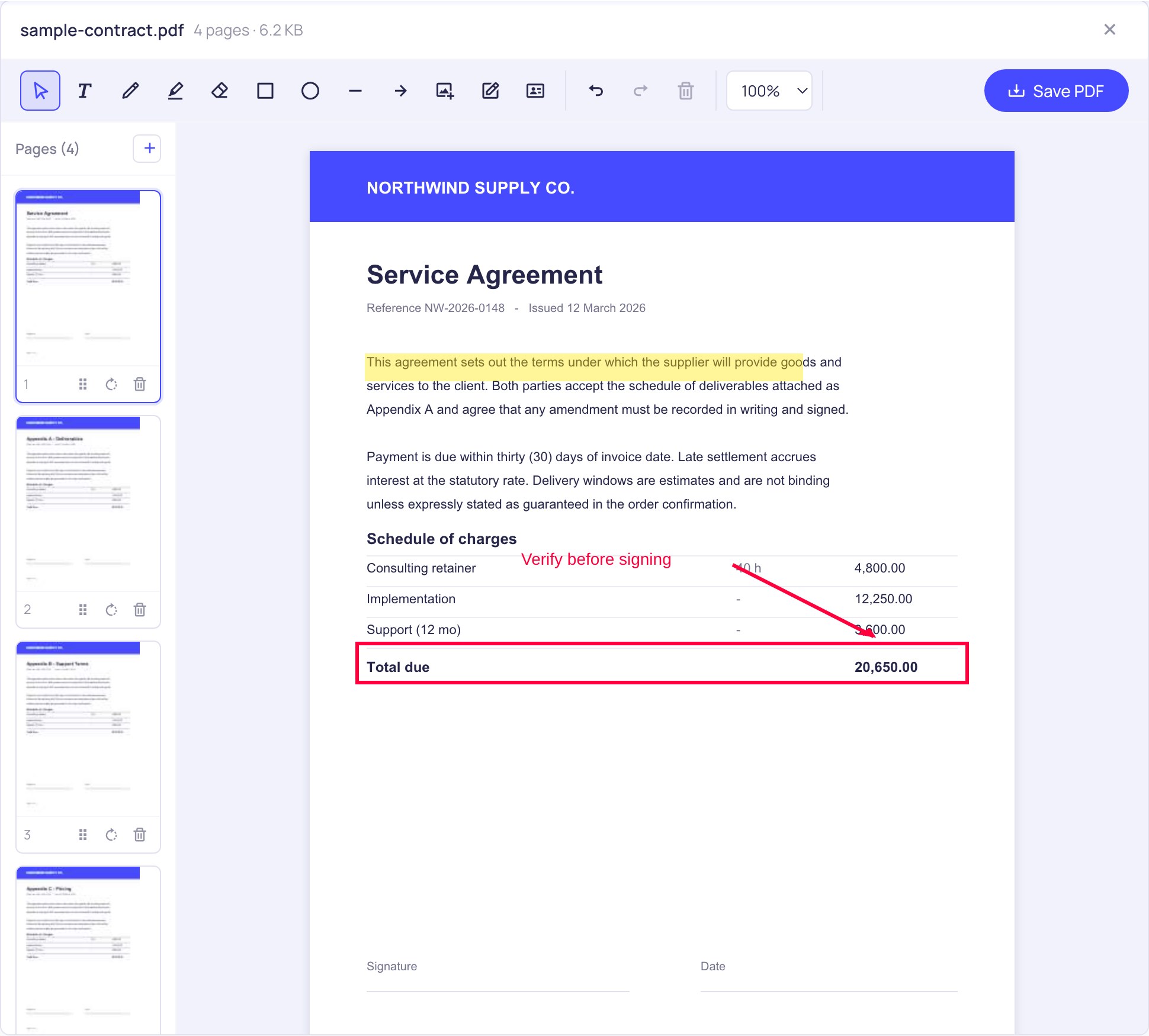
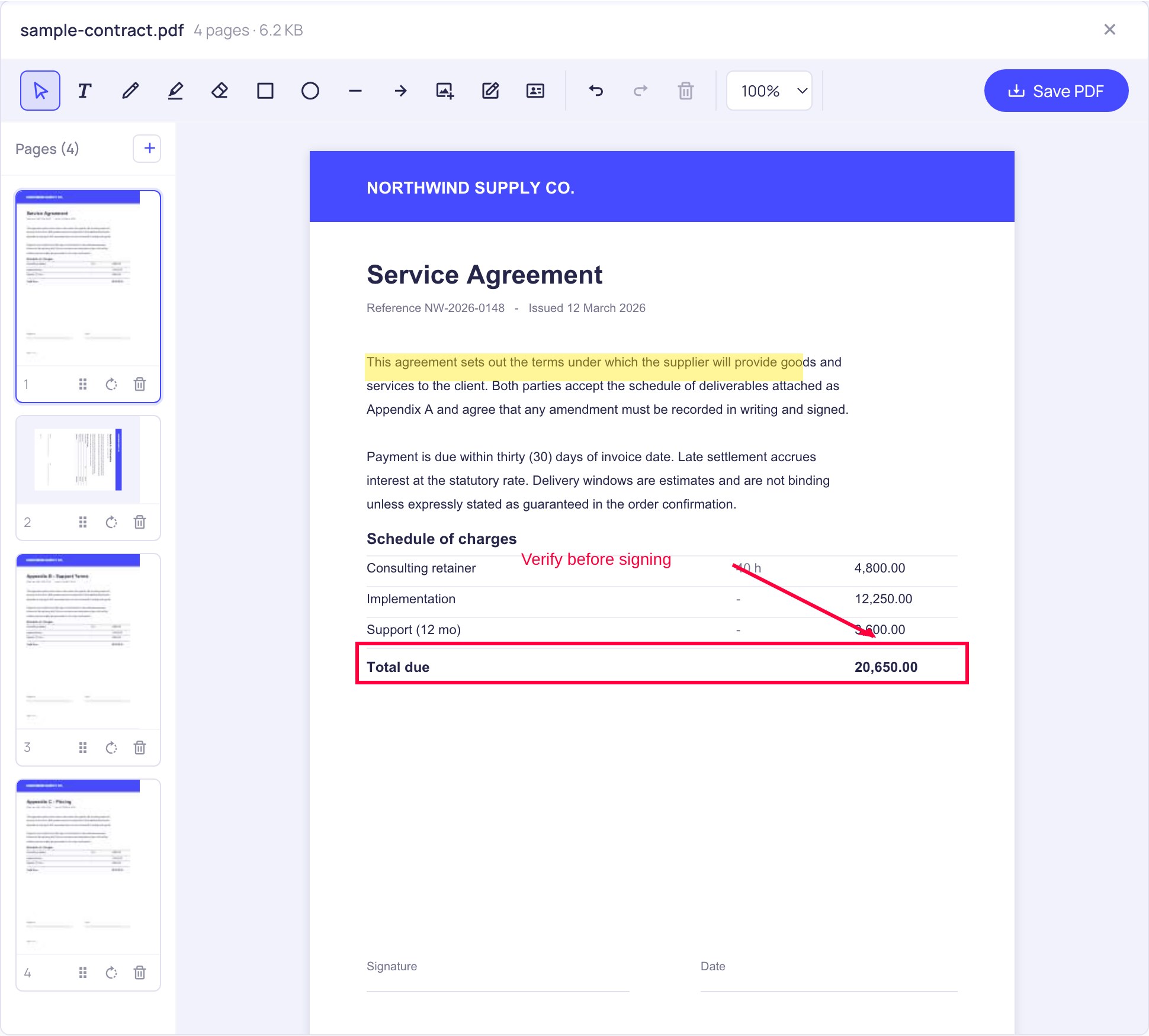
Annotating a contract with highlight, a red box, an arrow and a text note in the online PDF editor
What you can do with it
- Add text anywhere — click on the page and type, with a choice of font, size, colour, bold, italic and alignment.
- Highlight, underline and white out — mark up what matters, or cover something that should not be there.
- Draw freehand — a pen for circling figures, ticking boxes and scribbling notes.
- Shapes and arrows — rectangles, ellipses, lines and arrows to point at the thing you are talking about.
- Insert images — drop in a logo, a stamp, a photo or a screenshot and scale it into place.
- Sign the document — draw your signature, type it in a handwriting font, or upload a photo of it.
- Fill in PDF forms — text fields, checkboxes, radio buttons and dropdowns, kept fillable or locked in place.
- Organize pages — reorder by dragging, rotate, delete, and pull in pages from another PDF.
- Undo anything — a full history, plus your work is recovered if the tab closes on you.
One thing this tool does not do, and it is worth being straight about: it does not rewrite the text that is already baked into the PDF. You can add text on top, and you can white out a line and type a replacement over it, but you cannot click into an existing paragraph and retype it the way you would in a word processor. If that is what you need, you want the original document, not a PDF editor.
Fill in a PDF form without printing it
If the PDF has real form fields in it, the Fill form tool finds them and puts a proper input on top of each one. Type into text fields, tick checkboxes, pick from dropdowns. When you save, the values are written into the actual form, so the file stays fillable if somebody else needs to change an answer later.
Tick Lock values before saving and the form is flattened instead: the answers become part of the page and can no longer be edited. That is usually what you want before emailing a completed form back to somebody. If the PDF has no form fields at all — plenty of them do not, especially scans — the editor says so and you can simply use the text tool to type in the right places.
Sign a PDF
The signature tool gives you three ways in: draw it with a mouse, trackpad or finger; type your name and pick a handwriting style; or upload a photo or scan of a signature you already have. Whichever you choose, it is trimmed to the ink and dropped onto the page ready to drag into position and resize.
Signatures you make are remembered in your own browser, so the next document takes one click instead of a steady hand. To be clear about what this is: it produces a visible, handwritten-style signature on the page — the ordinary kind that most agreements, forms and delivery notes ask for. It is not a cryptographic digital signature with a certificate chain.
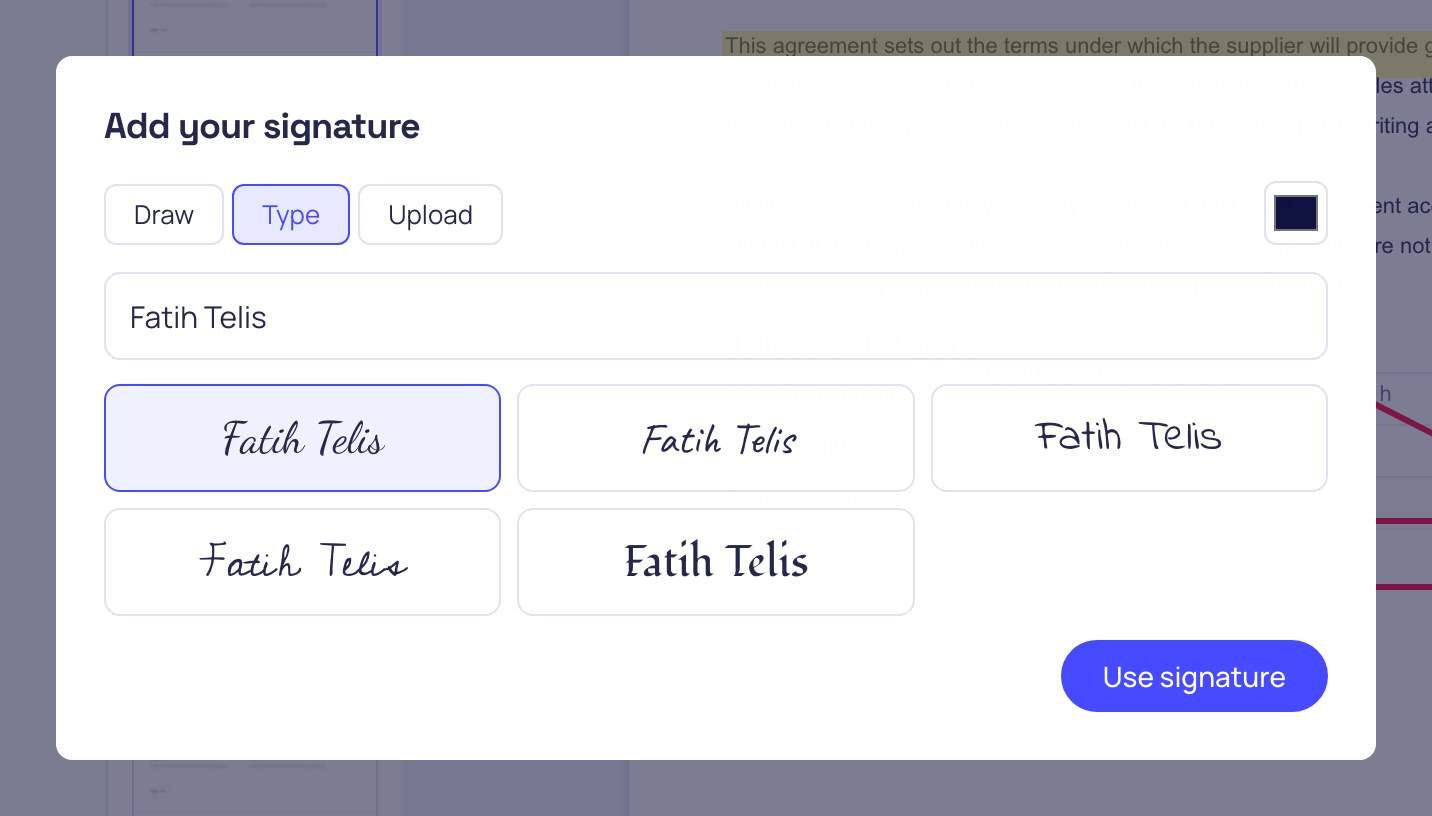
Creating a typed signature in a handwriting font in the PDF editor
Reorder, rotate and delete pages
The page strip down the left is a live view of the document. Drag a thumbnail to move that page, rotate a sideways scan upright, or delete the blank sheet the scanner threw in. Press the plus button and you can add pages from another PDF — so merging a signature page onto a contract, or appending an invoice, happens in the same place you are already working — no round trip through a separate PDF merger.
This is the gap most editors leave open: they will let you annotate a file or reorganise it, but not both without exporting and re-uploading in between. Here it is one document and one save. Anything you have drawn moves with its page, so reordering never strands an annotation on the wrong sheet.
Reordering and rotating pages in the page panel of the online PDF editor
If you only need one of these things
This page is the whole editor, which is the right place to start when a document needs several things doing to it. When it needs exactly one, there is a page for that job with the tool already selected and the instructions written for it — same editor underneath, so you can still reach everything else from the toolbar:
- Sign a PDF — draw, type or upload a signature and place it on the page.
- Fill in a PDF form — type into real form fields, then keep them fillable or lock the answers in.
- Add text to a PDF — click anywhere and type, with accented characters handled properly.
- White out part of a PDF — cover something that should not be there and write the correction over it.
How it compares to Smallpdf, iLovePDF and Sejda
Those tools are good, and they are also businesses with servers to pay for. That is why the free tiers look the way they do: Smallpdf allows a couple of tasks per day, Sejda works in bursts of a few tasks per hour with a page cap, iLovePDF puts a size ceiling on each tool and keeps OCR behind the paywall. None of that is unreasonable — running other people's documents through your own infrastructure costs real money.
This editor does not have that cost, because it never touches a server. Your browser does the work. So if you are looking for a Sejda alternative with no hourly limit, or a Smallpdf alternative without the daily cap, the difference is not generosity — it is architecture. The honest trade-off is the other way round: a very large file is limited by your own machine's memory rather than by our rules, and a few server-side features (like OCR on scanned documents) are not here yet.
Frequently asked questions
Is this PDF editor really free?
Yes, and without the usual asterisks. No account, no trial, no watermark on the output, no limit on how many documents you edit or how many pages they have.
Is my file uploaded anywhere?
No. The PDF is opened and saved by your browser. You can check this yourself: load the page, turn off your internet connection, and the editor keeps working normally.
Can I edit text that is already in the PDF?
Not directly. You can add new text, and you can white out existing text and type over it, but you cannot click into a paragraph and retype it. Editing the original document and exporting a fresh PDF will always give a better result.
Does it work on a phone or tablet?
Yes. Drawing, signing and dragging all work by touch, which makes a tablet or phone a good way to sign something quickly.
What about scanned PDFs?
You can annotate, sign and reorganise a scan exactly like any other PDF. What you cannot do yet is turn the scanned picture of text into selectable text — that needs OCR, which is on the list.
Will my accents and non-English characters survive?
Yes. Text is embedded with fonts covering Latin Extended, Greek and Cyrillic, so Turkish, Polish, Czech, Greek and Russian characters come out intact rather than as question marks — a common failure in tools that quietly fall back to a Latin-1 font.
Can I merge or split files here too?
You can pull pages in from another PDF and delete the ones you do not want, which covers most of it. For dedicated jobs there is also a PDF Merger, a PDF Splitter and a PDF Compressor.
Similar PDF Tools
See All